



Innerspark.us – Multi-touch gestures on drawing tablets offer a significant workflow boost for professional illustrators by enabling fluid navigation, but they are often considered a secondary convenience rather than a replacement for precision stylus input.
The integration of touch technology into digital drawing tablets has sparked a long-standing debate among artists. While some view the ability to pinch-to-zoom and rotate the canvas with fingers as a revolutionary efficiency tool, others see it as a source of accidental input and unnecessary hardware bloat. Understanding whether this feature is worth the investment depends largely on your specific workflow and your tolerance for technical quirks.
The Core Functionality of Touch Gestures
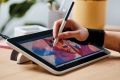
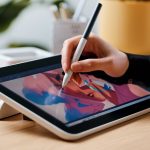
Multi-touch on a drawing tablet essentially mimics the experience of a trackpad or a smartphone screen. The primary goal is to offload the repetitive tasks of navigating the workspace from your non-dominant hand. Instead of constantly reaching for the keyboard to hit shortcuts like R for rotate or Z for zoom, you simply use your fingers on the tablet surface.
For artists working on large-scale canvases, this fluidity is transformative. Being able to rotate the canvas to reach a difficult angle while your stylus hand remains poised for a stroke creates a more natural, traditional drawing experience. It bridges the gap between the physical act of rotating a sketchbook and the digital constraints of a static display.
When Touch Becomes a Gimmick
The “gimmick” argument usually stems from poor palm rejection implementation. If your drawing software or tablet driver fails to distinguish between your palm resting on the screen and a deliberate gesture, the result is a frustrating series of accidental zooming and erratic canvas movements. This is a common pain point for beginners who have not yet mastered the habit of hovering their hands while drawing.
Furthermore, many professional illustrators prefer the tactile feedback of physical shortcut keys or programmable remote units. These devices offer a definitive “click,” which provides a level of certainty that a touch gesture cannot replicate. If you find yourself constantly disabling touch features just to keep your work surface stable, the technology is effectively a wasted expense.
Comparing Input Methods for Digital Artists
To determine if you need multi-touch, it is helpful to compare it against other common input methods used in professional studios.
| Input Method | Primary Benefit | Best For |
|---|---|---|
| Multi-Touch Gestures | Fluid, intuitive navigation | Casual sketching and organic painting |
| Programmable Keys | High precision and consistency | Technical drafting and repetitive tasks |
| Dial/Wheel Controllers | Incremental adjustments | Fine-tuning brush size and opacity |
| Keyboard Shortcuts | Muscle memory speed | Complex software workflows |
How to Integrate Touch Gestures Effectively
If you decide to utilize multi-touch, the key to success is configuration. Many tablets allow you to customize specific gestures to minimize accidental inputs. Here is a practical workflow to optimize your setup:
📷 Photo by digitalcameraworld.com
- Open your tablet driver software and locate the “Touch” or “Gestures” tab.
- Disable all gestures except for the two you use most frequently, such as two-finger pinch-to-zoom and two-finger rotate.
- Adjust the sensitivity settings to “Low” to ensure the tablet only registers deliberate finger movements rather than accidental brushing.
- Practice the “hover-draw” technique, where you keep your pinky and ring finger slightly lifted off the screen while the stylus is in contact with the surface.
- Assign a hardware button on your tablet to a “Touch Toggle” function, allowing you to instantly turn off touch input when you need to perform high-precision work.
Common Pitfalls and Solutions
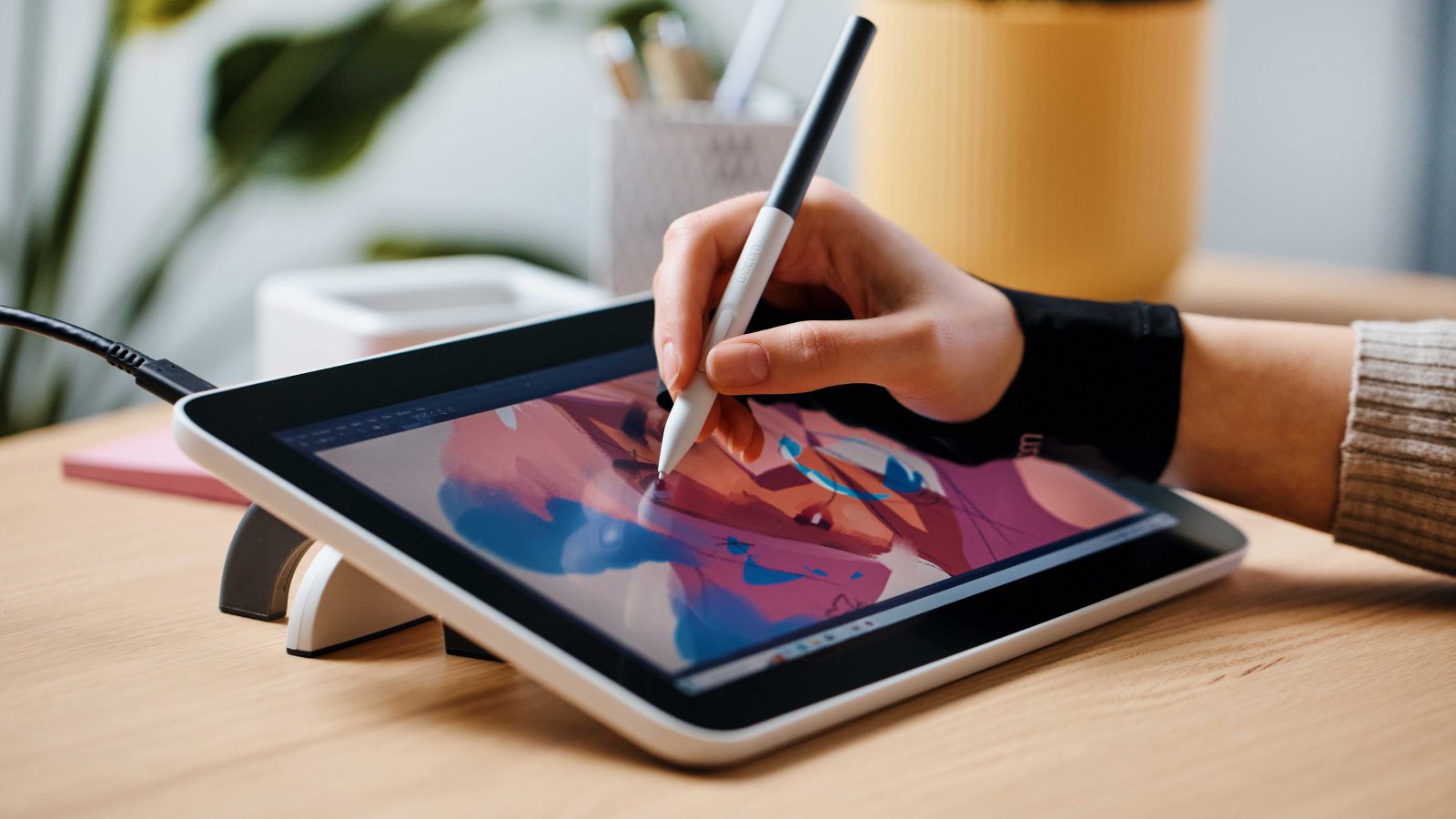
One of the most frequent complaints regarding touch-enabled tablets is the “sticky” feeling of skin against the glass surface. Unlike paper, which has a natural texture, glass can cause your hand to drag. If you struggle with this, consider using an artist’s glove—a partial glove covering your pinky and ring finger. This not only improves glide but also acts as an extra layer of protection against accidental touch registration.
Another issue is software compatibility. Not all creative applications handle touch input equally. While industry-standard software like Adobe Photoshop or Clip Studio Paint has robust support for touch, smaller or older applications may stutter when receiving multi-touch signals. Always ensure your tablet drivers are updated to the latest version to maintain optimal communication between your hardware and your software suite.
The Verdict: Worth It or Not?
Multi-touch is worth the investment if you prioritize a natural, fluid workflow and are willing to spend the time configuring your drivers to suit your specific hand movements. It is an excellent tool for concept artists, painters, and those who value the ability to interact with their canvas as if it were a physical object. However, if you are a precision-focused artist who relies heavily on static hand placement and mechanical shortcuts, you may find that the extra cost of a touch-enabled model is better spent on a higher-resolution screen or a more sensitive stylus.
Frequently Asked Questions
Q: Will multi-touch gestures interfere with my stylus input?
A: Modern tablets use advanced palm rejection technology to prioritize the stylus signal over touch input. However, if your hand rests heavily on the screen, accidental gestures can still occur, which is why most professionals keep a toggle shortcut nearby.
Q: Can I use multi-touch in every drawing application?
A: No, touch support is dependent on the application’s programming. While major software supports it, some niche or older programs may not recognize gestures at all, rendering the feature useless within those specific environments.
Q: Is multi-touch necessary for beginner artists?
A: Generally, no. Beginners should focus on mastering stylus pressure sensitivity and software shortcuts first. Multi-touch is an ergonomic luxury that becomes more valuable as you develop a faster, more complex professional workflow.
Ultimately, the decision rests on your personal comfort. Some artists find the touch capability to be an essential extension of their creative process, while others find it to be a distraction. If you have the opportunity, test a touch-enabled tablet in a store to see if the gesture responsiveness aligns with your natural drawing speed and style.
📷 Photo by walmart.com