



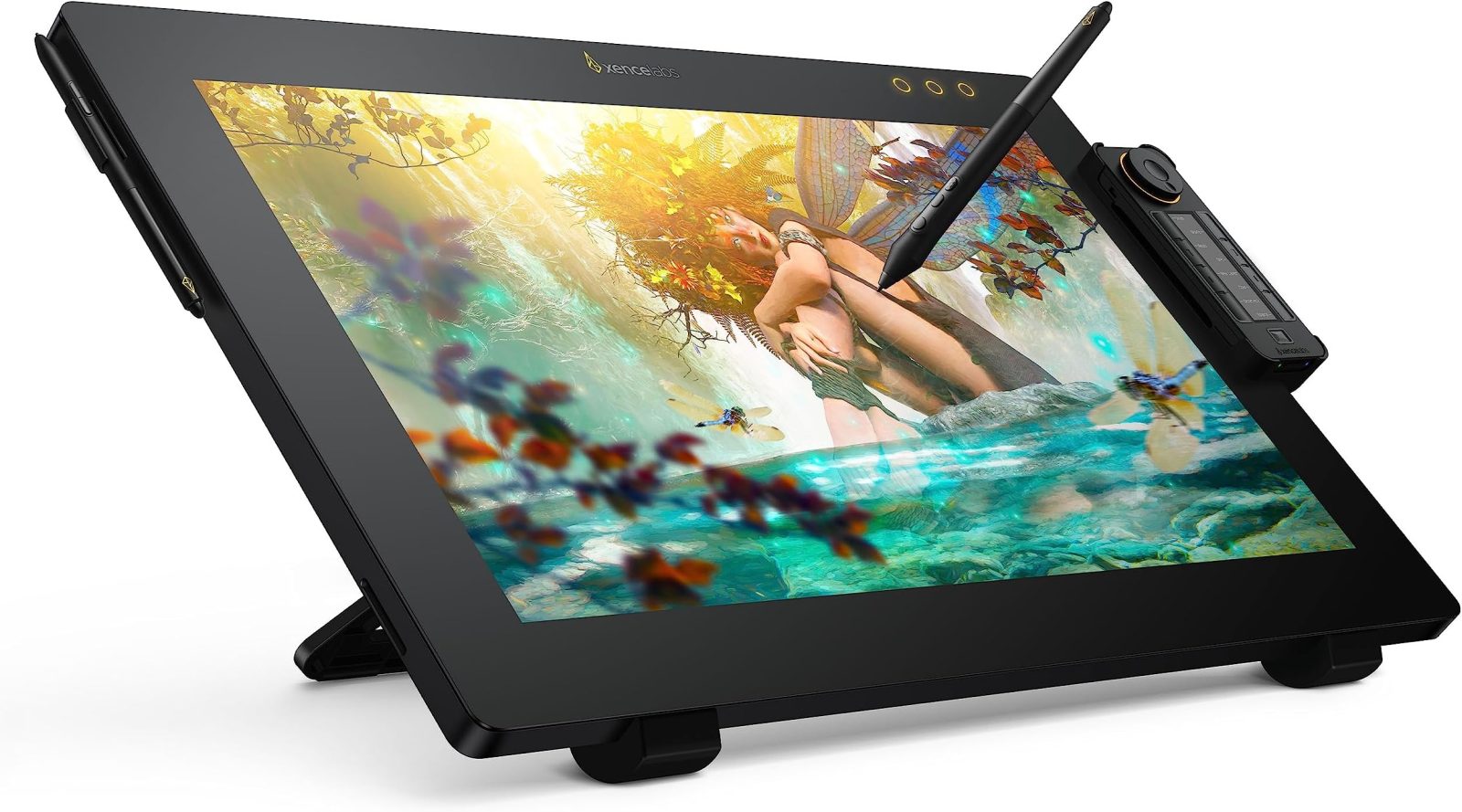
Innerspark.us – Calibrating a drawing tablet to match an external monitor requires synchronizing the color profiles of both devices using a hardware colorimeter to ensure consistent color accuracy across your digital workspace. By aligning the color temperature, gamma, and white point of your tablet display with your primary monitor, you eliminate the visual discrepancy that often leads to color shifting when moving projects between screens.
The Importance of Visual Consistency
Many digital artists encounter a frustrating reality: a vibrant, warm illustration on their drawing tablet looks muted or cool when dragged onto their main desktop monitor. This disconnect happens because most drawing tablets are manufactured with different panel technologies, color gamuts, and factory-set color temperatures compared to professional-grade desktop monitors. Without calibration, you are essentially painting in the dark, making decisions based on inaccurate visual data.
Understanding Color Gamuts and White Points
Before you begin the calibration process, you must understand that not all screens are capable of displaying the same spectrum of colors. If your drawing tablet covers 90 percent of the sRGB color space while your main monitor covers 99 percent of Adobe RGB, they will never look identical. Calibration is not about changing the hardware’s physical capabilities; it is about creating a “translation” file—an ICC profile—that forces both devices to interpret color data as similarly as possible.
The white point is another critical factor. Most monitors are factory-set to a cool 6500K (D65), but some tablets lean toward 7500K or higher, making them appear “bluer.” Matching these white points is the most effective way to make two screens feel like a seamless unit.
Hardware Calibration vs. Software Adjustments
While you can adjust basic settings through your operating system’s display settings, this is rarely enough for professional work. Software-only calibration relies on your eyes, which are notoriously unreliable at judging color accuracy. A hardware colorimeter, such as those produced by Datacolor or Calibrite, measures the actual light output of the screen and creates a custom ICC profile that your operating system uses to adjust the color signal sent to the display.
Step-by-Step Calibration Workflow
Follow these steps to synchronize your display environment effectively:
- Warm up both displays by leaving them powered on for at least 30 minutes before starting, as screen temperatures affect color reproduction.
- Reset both your drawing tablet and your external monitor to their factory default settings through their respective OSD (On-Screen Display) menus.
- Connect your colorimeter to your computer and launch the calibration software provided with your device.
- Select your primary monitor as the first target and run the full calibration process, aiming for a white point of 6500K and a gamma of 2.2.
- Once the primary monitor profile is saved, move the colorimeter to the drawing tablet and repeat the process, using the exact same target settings used for the primary monitor.
- Apply the generated ICC profiles in your Windows Color Management or macOS Display settings.
- Perform a visual inspection by dragging a neutral gray window across both screens to check for tint differences.
Recommended Calibration Settings for Artists
To maintain a professional standard, use the following configuration targets during your calibration process.
| Setting Parameter | Recommended Value | Purpose |
|---|---|---|
| White Point | 6500K (D65) | Standard daylight white point for web and print. |
| Gamma | 2.2 | The industry standard for color accuracy and shadow detail. |
| Brightness | 100-120 cd/m2 | Reduces eye strain and mimics standard print lighting. |
| ICC Profile Version | Version 2 | Ensures maximum compatibility with older software. |
Common Mistakes and How to Avoid Them
One common mistake is calibrating your tablet while ambient light is hitting the screen. Direct sunlight or overhead fluorescent lights can alter your perception of color and confuse the colorimeter sensor. Always calibrate in a dimly lit room with consistent lighting conditions. Another error is failing to update your graphics card drivers before calibration. Corrupt or outdated drivers can interfere with the way ICC profiles are loaded, causing the calibration to fail or reset randomly.
If your tablet and monitor use vastly different panel types—for instance, an IPS panel for your monitor and a lower-quality TN or budget-level panel for your tablet—you might encounter “banding” after calibration. This happens when the software forces the screen to compensate for colors it cannot naturally produce. In these cases, focus on matching the white point and brightness, as you cannot force a budget panel to achieve the color depth of a professional screen.
Maintaining Calibration Over Time
Displays drift over time as the backlight ages. Even if your screens matched perfectly last month, they might be slightly off today. It is recommended to perform a “re-validation” of your calibration every three to six months. If you notice that your digital paintings look significantly different when viewed on a mobile device or a different computer, it is a clear sign that your display profile has drifted and requires a fresh calibration cycle.
Frequently Asked Questions
Q: Do I need a different colorimeter for my tablet than for my monitor?
A: No, the same hardware colorimeter can calibrate both devices. The software will simply treat them as two separate displays connected to the same computer.
Q: Can I calibrate my tablet using only the Windows or Mac built-in tools?
A: You can, but it is highly inaccurate. Built-in tools rely on your visual judgment, which is prone to error; a hardware colorimeter is necessary for professional-grade color accuracy.
Q: Why does my tablet still look different after calibration?
A: This is often due to “metamerism” or differences in panel technology. If the hardware capabilities (gamut) of the two screens are too far apart, software calibration can only do so much to bridge the gap.
📷 Photo by amazon.com