



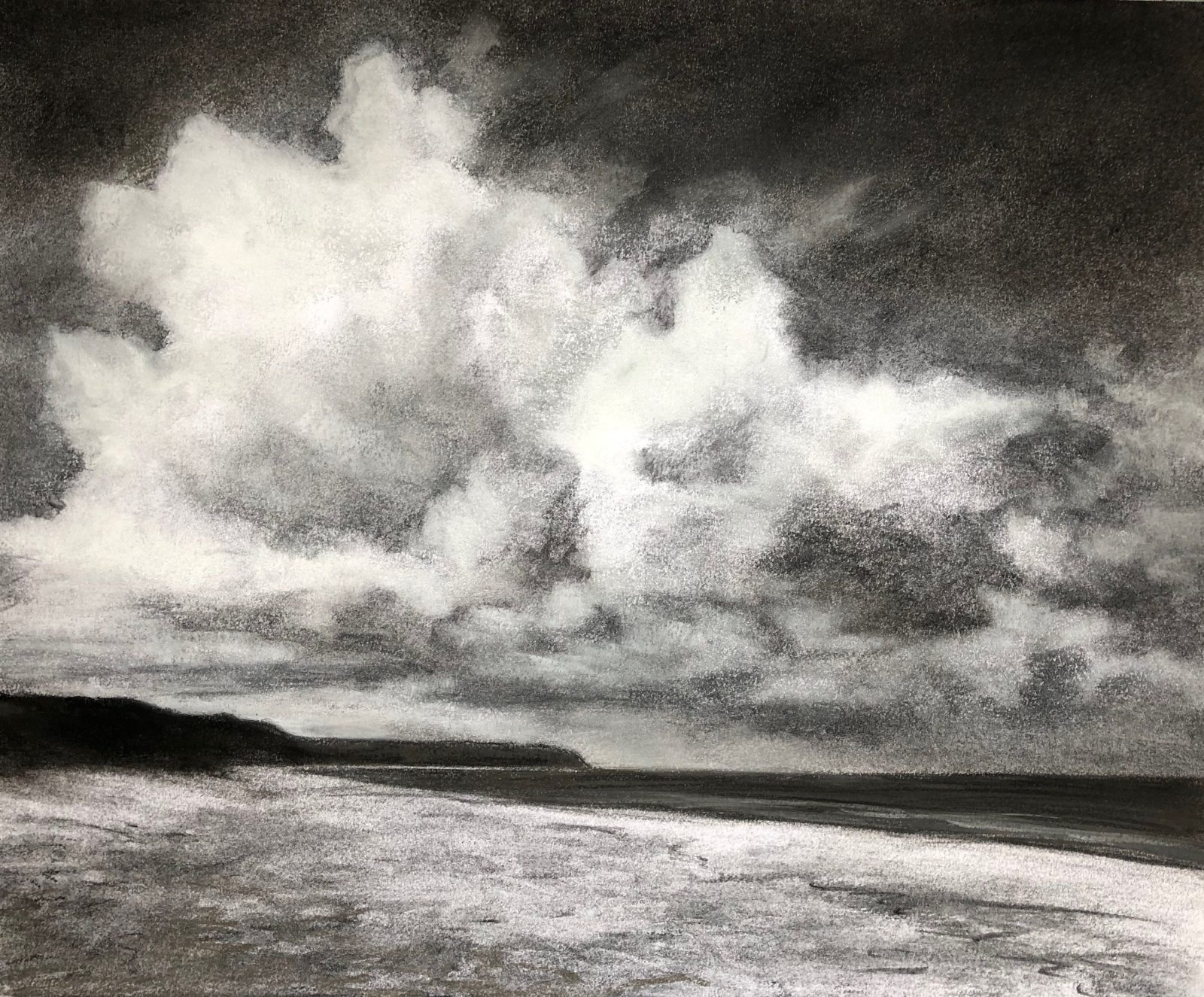
Innerspark.us – Digitizing charcoal and pastel drawings requires a high-resolution scanning or photography setup combined with a non-contact approach to prevent smearing the delicate, loose pigment particles on the paper surface.
Charcoal and pastel are notoriously difficult to digitize because the medium sits loosely on top of the paper fibers. Unlike ink or oil paint, which bond with the substrate, these dry pigments can easily shift, lift, or smudge under the weight of a traditional flatbed scanner lid. Achieving a professional-grade digital reproduction requires a shift in technique, focusing on stability, lighting, and specialized post-processing.
The Risks of Traditional Scanning
The primary reason artists struggle with digitizing these works is the reliance on flatbed scanners. When you place a drawing face-down on a scanner glass, you are essentially inviting friction. The pressure from the lid, combined with the electrostatic charge of the glass, acts like a magnet for charcoal dust. Even if the drawing does not touch the glass directly, the vibration of the scanner head moving underneath can cause fine particles to flake off, resulting in a blurred image and a dirty scanner bed.
The Preferred Method: High-Resolution Photography
The gold standard for digitizing pastel and charcoal is professional photography. By using a tripod-mounted camera, you eliminate physical contact with the artwork entirely. This method preserves the texture of the paper and the depth of the charcoal strokes, which are often flattened out by the harsh, direct light of a scanner.
Step-by-Step Guide to Digitizing Your Artwork
- Prepare the Environment: Set up your artwork on a vertical surface or a stable table in a room with consistent, indirect natural light or controlled studio lighting. Ensure the space is free of drafts that could blow dust onto the piece.
- Stabilize the Camera: Use a sturdy tripod and position your camera so the lens is perfectly parallel to the artwork. Use a spirit level to ensure the camera is not tilted, which prevents geometric distortion.
- Set Your Lighting: Place two light sources at 45-degree angles on either side of the artwork. This “cross-lighting” technique minimizes glare and shadows while highlighting the texture of the charcoal or pastel. Avoid using a direct camera flash, as this will create hotspots on the pigment.
- Capture in RAW Format: Always shoot in RAW format to retain the maximum amount of color data and dynamic range. This allows you to recover details in the deepest shadows and brightest highlights during editing.
- Check Focus and Depth: Use a medium aperture (around f/8 or f/11) to ensure the entire surface of the drawing is in sharp focus. Use a remote shutter release or the camera’s self-timer to prevent vibrations caused by pressing the shutter button.
Essential Equipment Comparison
Read also: Best Compact Studio Lighting Kit for Small Apartment Art Studios
| Equipment | Suitability for Charcoal/Pastel | Key Benefit |
|---|---|---|
| Flatbed Scanner | Low | Easily accessible, but high risk of smudging. |
| DSLR/Mirrorless Camera | High | No physical contact; preserves texture. |
| Smartphone Camera | Medium | Convenient, but requires good software for perspective correction. |
| Polarizing Filter | High | Essential for removing glare from fixative sprays. |
The Role of Fixatives and Surface Protection
Many artists use fixatives to prevent smudging during the creative process, but these can change the appearance of your work. A matte fixative is generally preferred for digitization because it does not create the reflective sheen that glossy sprays do. If your work is heavily layered, consider digitizing it before applying the final layer of fixative if the spray significantly darkens the charcoal values.
Common Mistakes to Avoid
One of the most frequent errors is failing to color-calibrate the digital file. Charcoal often has subtle blue or brown undertones that a camera’s auto-white balance might strip away. Always include a color checker card in one of your shots to serve as a reference point for post-production editing. Another common mistake is neglecting to clean the workspace; even a small amount of stray charcoal dust can be magnified during high-resolution processing, leading to digital noise that is difficult to remove without losing detail.
Post-Processing for Clarity
Once you have your digital files, use software like Adobe Lightroom or Photoshop to refine the image. Adjust the black levels to ensure your deepest charcoal blacks are rich and dark, but be careful not to crush the details in the shadows. Use the “clarity” or “texture” sliders sparingly; over-sharpening can make the digital dust particles appear more prominent than the actual charcoal strokes.
FAQ
Q: Should I use glass or acrylic to hold the drawing flat during photography?
A: Avoid placing glass or acrylic directly on top of the drawing. The weight will flatten the texture and may cause the charcoal to stick to the underside of the glass, leading to permanent damage.
Q: How do I handle very large pastel drawings?
A: For large works, use the “tiling” method. Take multiple high-resolution photos of different sections of the drawing, ensuring a 20% overlap between shots, and then use photo-stitching software to merge them into one high-resolution master file.
Q: Does the color of the background paper matter?
A: Yes, the background paper color will affect your exposure settings. If you are drawing on toned paper, ensure your white balance is set manually to keep the paper tone accurate, otherwise, your highlights may appear artificially cool or warm.
By shifting your process from scanning to controlled photography, you protect the integrity of your physical work while ensuring that your digital portfolio accurately reflects the nuance and depth of your original drawings. Patience during the setup phase is the most important factor in achieving a smudge-free, professional result.
📷 Photo by howtodrawfantasy.com