




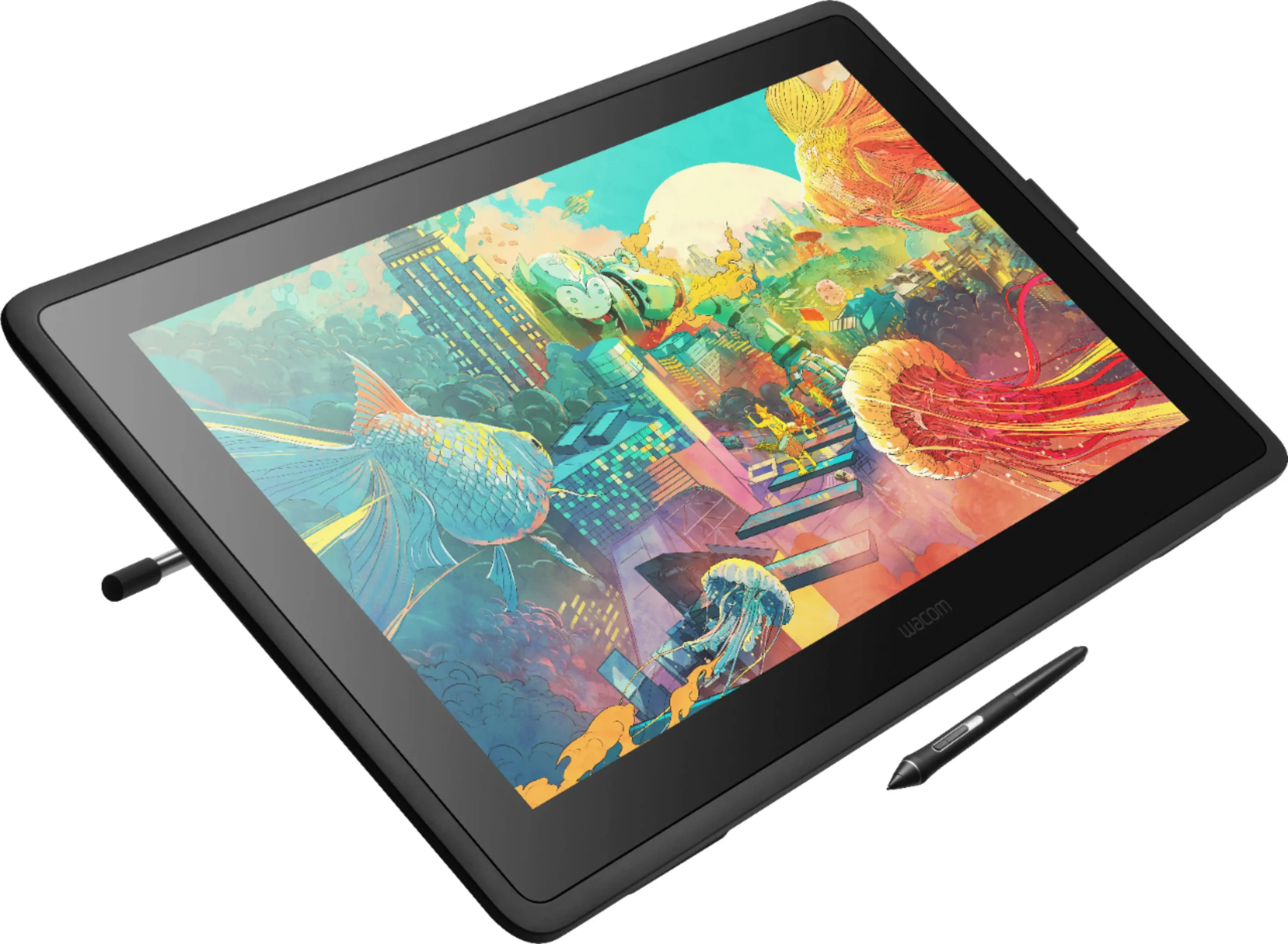
Innerspark.us – The best drawing tablet with a screen for digital illustrators is the Wacom Cintiq Pro 27 for professional-grade performance, while the Huion Kamvas Pro 19 offers the most balanced value for independent artists seeking high color accuracy and tactile precision.
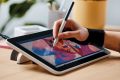
Choosing a drawing tablet with a screen, often called a pen display, changes the workflow for digital artists by bridging the gap between traditional paper-and-pencil sketching and digital convenience. When you draw directly onto the screen, you eliminate the hand-eye coordination hurdle inherent in using standard pen tablets, allowing for more intuitive strokes and faster execution of complex illustrations.
Key Considerations for Selecting a Pen Display
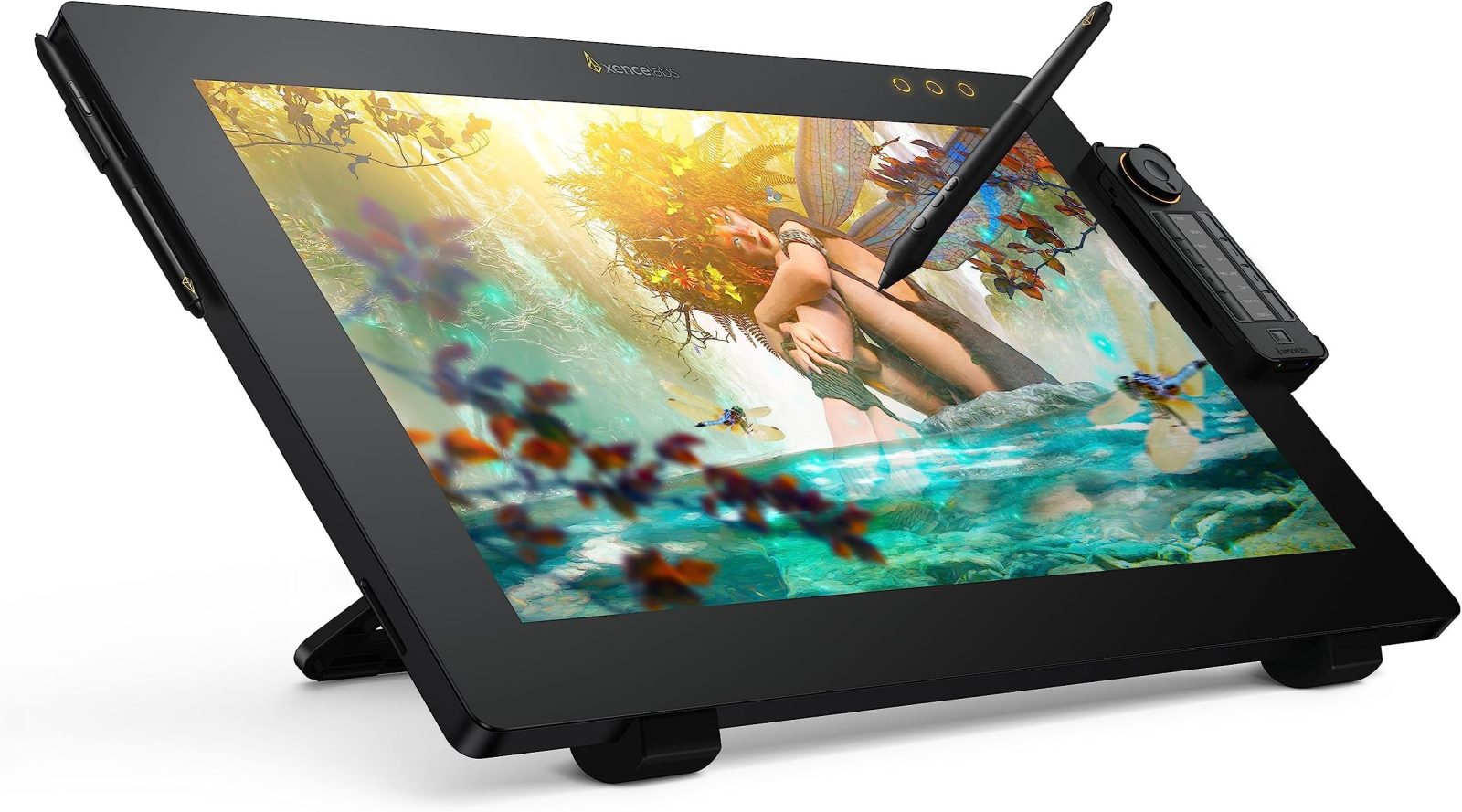
Before investing in a drawing tablet, you must consider the display technology, color gamut coverage, and pen sensitivity. Professionals often prioritize color accuracy, specifically Adobe RGB and sRGB coverage, to ensure that their work looks identical on screen and in print. Meanwhile, hobbyists may prioritize screen size and portability.
📷 Photo by amazon.com
Another critical factor is the glass texture. Etched glass provides a subtle friction that mimics the feel of graphite on paper, reducing the slippery sensation common in cheaper plastic screen protectors. If you suffer from wrist fatigue, look for models that support adjustable stands or VESA mount compatibility, allowing you to tilt the screen to an ergonomic angle.
Comparison of Top-Tier Drawing Tablets
| Model | Resolution | Color Gamut | Best For |
|---|---|---|---|
| Wacom Cintiq Pro 27 | 4K (3840 x 2160) | 99% Adobe RGB | High-end Studio Work |
| Huion Kamvas Pro 19 | 4K (3840 x 2160) | 96% Adobe RGB | Professional Freelancers |
| XP-Pen Artist Pro 16 (Gen 2) | 2.5K (2560 x 1600) | 99% sRGB | Digital Illustrators on a Budget |
| iPad Pro 13 (M4) | Ultra Retina XDR | P3 Wide Color | Mobile & On-the-go Artists |
Setting Up Your Digital Workspace for Success
Optimizing your workspace is just as important as the hardware itself. Many illustrators make the mistake of plugging in their tablet without calibrating the display colors, leading to mismatched prints later. Follow these steps to ensure your new device is ready for professional output:
- Install the latest driver directly from the manufacturer’s website rather than using the outdated version found on the included CD or USB drive.
- Connect the tablet to your computer using a high-speed USB-C or HDMI port to ensure zero latency during brush strokes.
- Perform a color calibration using a dedicated hardware calibrator to match the screen output with your monitor profile.
- Configure your tablet shortcut keys or remote buttons to match your most-used tools in software like Photoshop, Clip Studio Paint, or Procreate.
- Adjust the pen pressure curve in the settings menu to match your natural drawing weight, whether you have a light touch or a heavy hand.
Common Mistakes When Transitioning to Screen Tablets
One of the most frequent errors artists make is neglecting the pen nibs. Using a worn-down nib can scratch the screen’s anti-glare coating over time. Check your nibs weekly and replace them the moment they show signs of an uneven edge. Furthermore, many beginners fail to account for parallax—the physical distance between the pen tip and the cursor on screen. While modern displays have reduced this significantly, keeping your driver updated is essential to maintaining precise calibration.
Another mistake is ignoring the importance of ergonomic positioning. Drawing on a flat desk often leads to “tech neck.” Investing in a tablet stand that raises the device to eye level or allows for a steep tilt is vital for long-term health. If you are using a tablet that produces heat, ensure your workspace is well-ventilated, as prolonged use can cause the screen surface to warm up, which may lead to palm sweat or discomfort during long sessions.
The Role of Software Integration
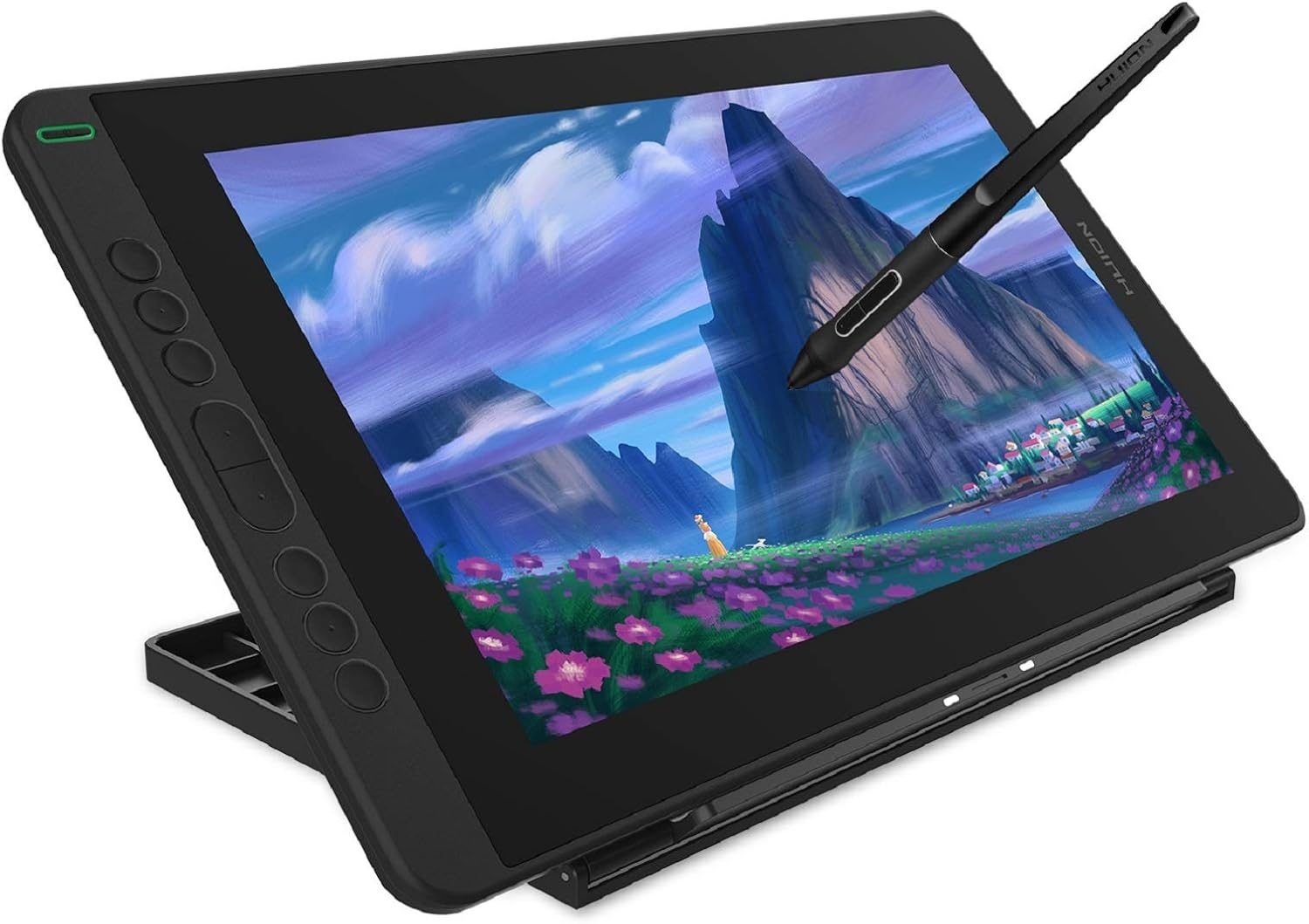
Hardware is only half the equation. Your choice of software dictates how the tablet behaves. Some tablets are optimized for specific programs; for instance, Wacom’s tilt sensitivity and pressure responsiveness are deeply integrated into Adobe Creative Cloud. Conversely, if you use software like Krita or Paint Tool SAI, ensure the tablet driver supports Windows Ink or Wintab protocols to avoid jittery lines.
📷 Photo by ceqcpwcb.blob.core.windows.net
Frequently Asked Questions
Q: Does a drawing tablet with a screen require a computer to work?
A: Most professional pen displays require a connection to a PC or Mac to function. However, standalone tablets like the iPad Pro or Samsung Galaxy Tab S series have built-in processors and run their own operating systems, allowing you to draw without a computer.
Q: How long should a drawing tablet screen last?
A: With proper care, a high-quality pen display can last between 5 to 8 years. The primary point of failure is usually the cable connection or the screen’s backlight, so handle your cables with care and avoid keeping the screen brightness at maximum levels for extended periods.
Q: Is 4K resolution necessary for digital illustration?
A: While 4K is not strictly necessary, it is highly recommended for screens larger than 16 inches. Higher pixel density ensures that fine lines and intricate details remain sharp, preventing pixelation when you zoom in for detailed work.
Ultimately, the “best” tablet is the one that fits your specific workflow. If you are a professional who spends eight hours a day illustrating, the investment in a Wacom or a high-end Huion is justified by the reduction in eye strain and the increase in precision. For those just beginning, a mid-range tablet provides all the necessary features to learn the craft without overspending on features you may not yet need.
📷 Photo by bestbuy.com