





Innerspark.us – Scanning oversized artwork requires a multi-pass stitching technique using a standard flatbed scanner or a high-resolution DSLR camera setup to ensure the digital reproduction maintains the texture, color accuracy, and fine detail of the original piece.
When artists transition physical portfolios to digital formats, the biggest hurdle is often the physical scale of the work. Standard A4 or letter-sized scanners cannot capture a large-format painting, mural sketch, or oversized charcoal drawing in a single pass. Achieving a professional-grade digital file requires more than just snapping a photo with a smartphone; it demands precision, specific lighting, and post-production software skills to ensure the final image looks seamless.
The Two Primary Approaches: Scanning vs. Photography
There are two main ways to digitize oversized art: the stitching method with a flatbed scanner or the digital photography method. If your artwork is flat—such as a watercolor on heavy stock—a flatbed scanner is superior because it provides consistent, even lighting and high optical resolution. However, if the artwork has thick paint, collage elements, or mixed media textures, a flatbed scanner will cause focus issues. In these cases, high-resolution photography is the industry standard.
Essential Equipment Checklist
Before you begin the digitization process, ensure you have the necessary tools to minimize distortion and noise. The following table outlines the equipment requirements based on the size and nature of your artwork.
📷 Photo by designsupply.co.uk
| Equipment Type | Recommended Specification | Best For |
|---|---|---|
| Flatbed Scanner | Optical Resolution: 2400 DPI+ | Flat prints, drawings, watercolors |
| DSLR/Mirrorless Camera | 24 Megapixels or higher | Textured, large-scale, or heavy media |
| Lighting | Softbox or diffused studio lights | Eliminating glare and hot spots |
| Tripod | Sturdy, leveling spirit-bubble | Preventing camera shake and tilt |
| Editing Software | Photoshop or Lightroom | Stitching and color correction |
Step-by-Step Guide to Stitching Scanned Segments
If you choose to use a flatbed scanner for an oversized piece, you must capture the art in overlapping sections. Precise movement is critical to the success of the final composite.
- Place your artwork on the scanner glass, starting from the top-left corner. Ensure the piece is aligned as straight as possible.
- Scan the first segment at a high DPI (minimum 600 DPI for print-quality portfolios).
- Move the artwork slightly to the right for the next segment, ensuring an overlap of at least 15% to 20% between the first and second scan.
- Repeat the process row by row until the entire surface of the artwork has been captured.
- Import all segments into photo editing software like Adobe Photoshop.
- Utilize the Photomerge function or manually align the images by setting the layer opacity to 50% to match the overlapping details perfectly.
- Flatten the image and perform color grading to ensure the color consistency remains uniform across all segments.
Common Mistakes to Avoid
One of the most frequent errors artists make is failing to account for ambient light. If you are using a camera, never rely on overhead room lighting, as it will cast shadows and create uneven color temperatures. Always use two light sources positioned at 45-degree angles to the artwork to neutralize shadows and glare.
Another common pitfall is lens distortion. If you are photographing your art, move the camera further away and use a focal length of at least 50mm or 85mm. Using a wide-angle lens close to the work will cause “barrel distortion,” where the edges of the artwork appear curved or warped, making it nearly impossible to align the edges correctly in your portfolio.
Post-Production: The Final Polish
Once you have stitched or photographed your artwork, the raw file will rarely look perfect immediately. You must adjust the white balance to match the original piece. Use a color checker card in one of your shots if possible; this allows you to calibrate the digital file against a known color standard. Finally, sharpen the image slightly to account for the softening effect of the scanner glass or the lens, but be careful not to over-sharpen, as this introduces digital noise and artifacts.
Managing Large File Sizes
High-resolution scans result in massive file sizes that can be difficult to upload to portfolio sites. Always save your “master” file as a TIFF or PSD for archival purposes. When preparing for web display, create a secondary version as a high-quality JPEG (usually 72 to 150 DPI). This ensures your portfolio loads quickly on mobile devices while still looking crisp on high-definition retina displays.
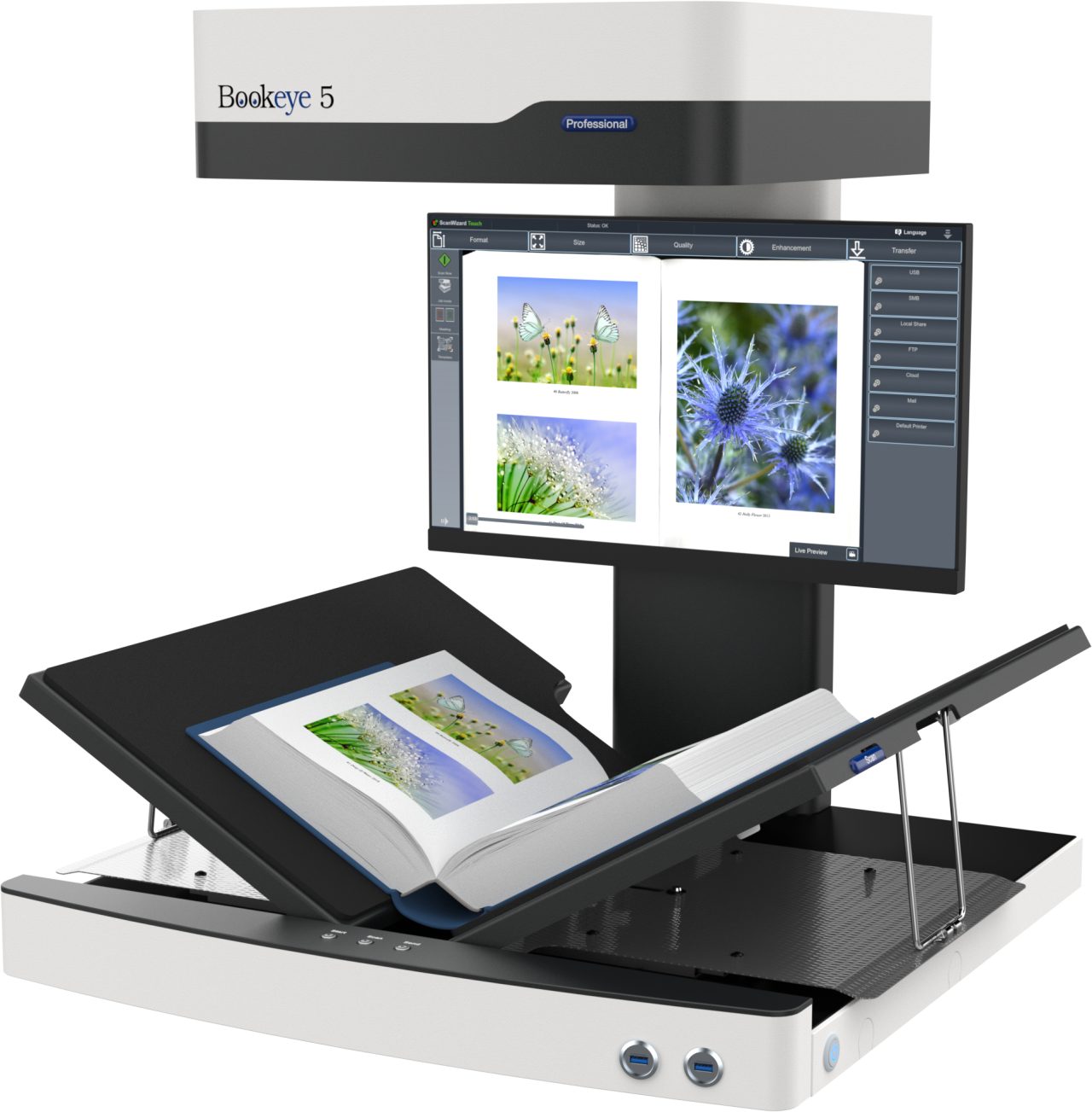
📷 Photo by largeformatscanners.com
Q: Why does my scanned image look blurry at the edges?
A: This is usually caused by the artwork not sitting perfectly flat against the scanner bed. If the paper has any curl or texture, use a heavy, clear piece of anti-reflective glass or a weighted frame to press the art flush against the scanner glass.
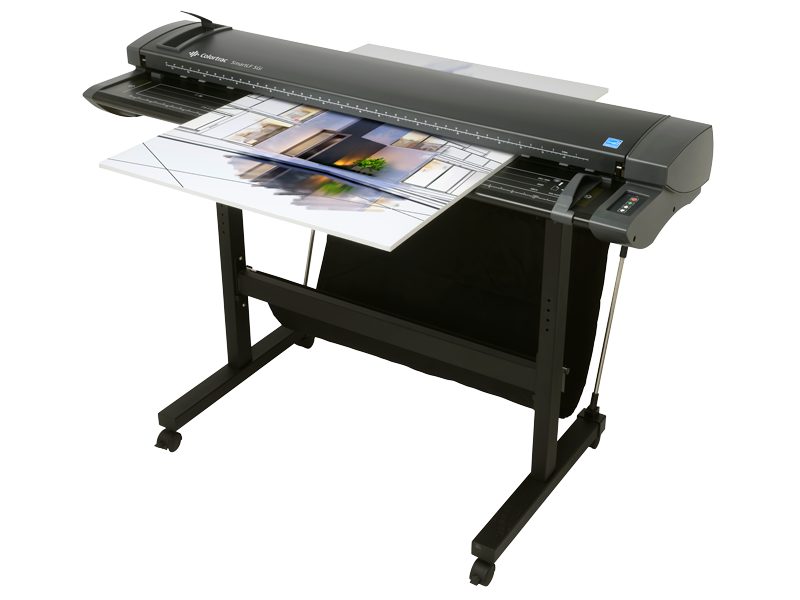
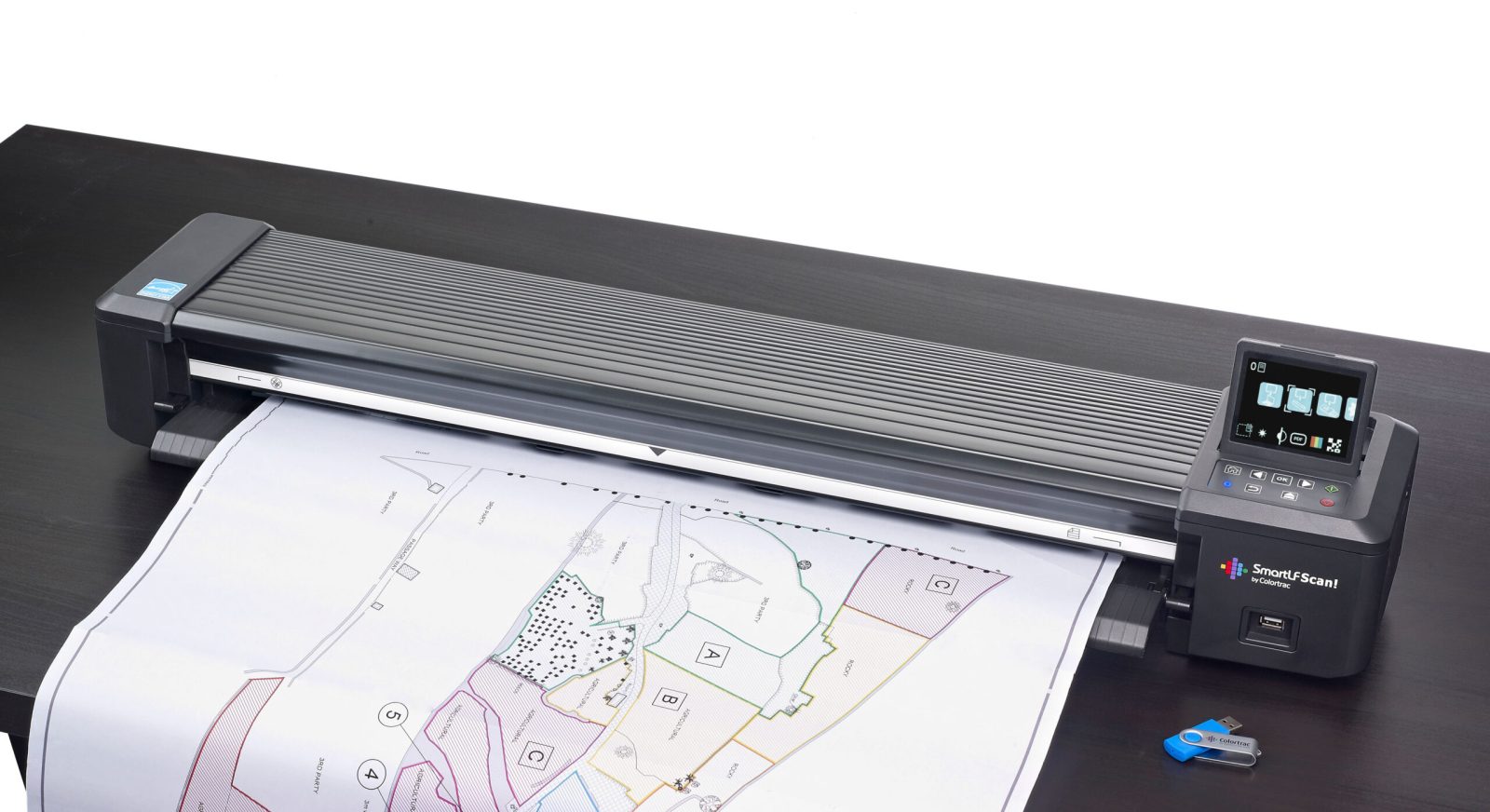
📷 Photo by colortrac.com
Q: Is it better to scan or photograph a textured oil painting?
A: Always photograph a textured oil painting. A scanner will compress the thick paint and potentially damage the surface, whereas professional photography with side-lighting will capture the depth, brushstrokes, and impasto texture that define your style.
Final Thoughts on Digital Presentation
Your digital portfolio is often the first, and sometimes the only, impression you make on a gallery curator or client. By taking the time to properly digitize your oversized works, you demonstrate professionalism and a commitment to quality. Whether you are stitching scans or mastering the art of copy-stand photography, the goal is to make the digital experience feel as close to viewing the physical object as possible. Keep your files organized, perform consistent color correction, and your portfolio will stand out as a collection of high-fidelity professional assets.
Read also: Presentation Case vs Presentation Folder: Choosing Artist Storage
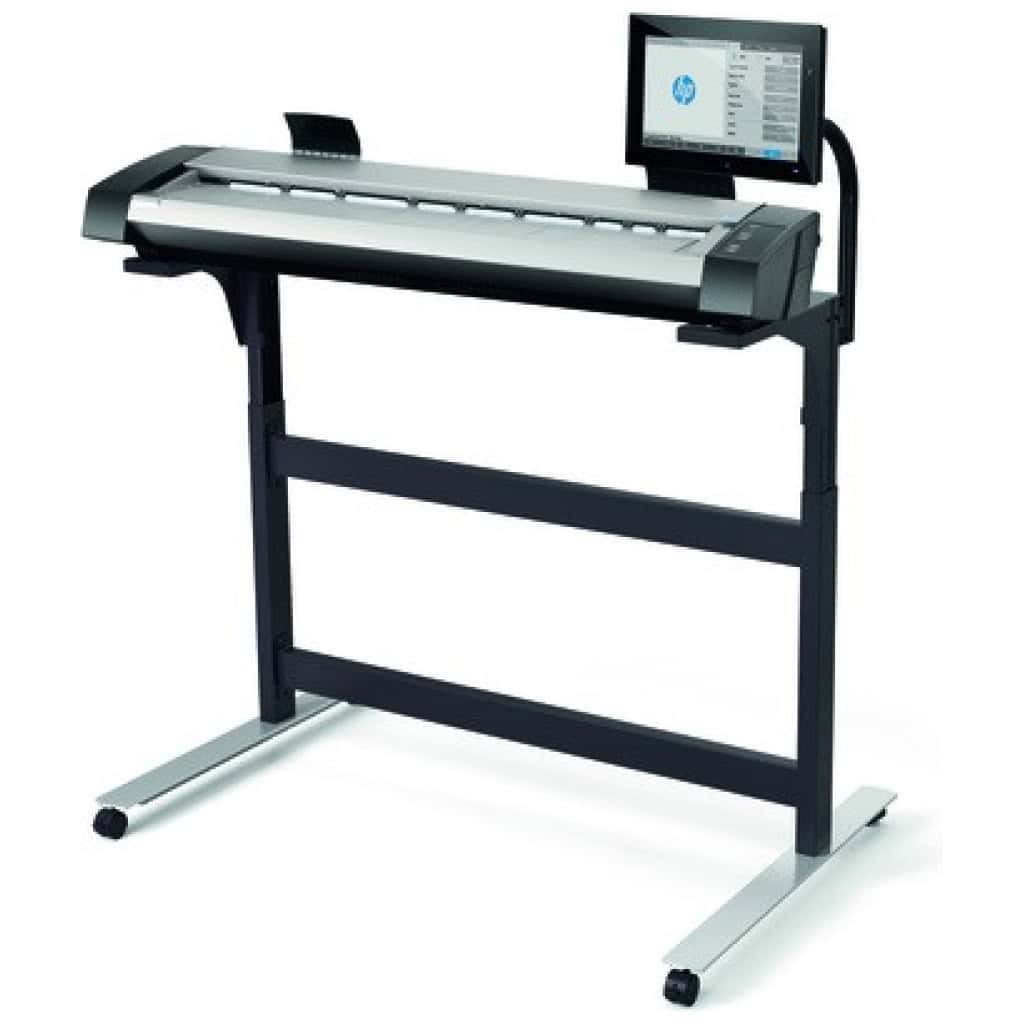
📷 Photo by businessdigitalmachines.co.uk