



Innerspark.us – Preparing digital art for gallery-grade printing requires converting your files to a high-resolution CMYK color space with precise ICC profile management and physical dimensions that match your output medium. The goal is to bridge the gap between the luminous light of an RGB monitor and the physical pigment-on-paper reality of a gallery wall.
Understanding Color Spaces and ICC Profiles
The most common mistake artists make is sending an sRGB file to a professional printer. sRGB is designed for screens, and its color gamut is significantly smaller than what modern inkjet printers can achieve. You must work in Adobe RGB (1998) or ProPhoto RGB during the editing phase, then convert to the printer’s specific CMYK profile only during the final export stage.
Always request an ICC profile from your print shop. This file acts as a translator between your digital data and the specific ink-paper combination being used. By soft-proofing in software like Photoshop, you can see exactly which colors will “clip” or shift when printed, allowing you to make manual adjustments before the physical print is ever made.
Resolution and Scaling Requirements
Gallery prints demand high fidelity. While the industry standard is 300 DPI (dots per inch), large-format gallery prints can often look exceptional at 240 DPI if the viewing distance is expected to be several feet away. Never rely on software-based upscaling filters alone; if your source file is too small, use AI-driven enlargement tools or vector paths to maintain edge crispness.
Comparison of Common Print Mediums
| Medium | Surface Finish | Best For | Ink Absorption |
|---|---|---|---|
| Fine Art Cotton Rag | Matte/Textured | Illustrations, Giclée | High |
| Metallic Gloss | High Reflective | High Contrast/Vibrant | Low |
| Canvas (Stretched) | Textured | Large Scale/Oil Style | Medium |
Step-by-Step Preparation Workflow
Follow these steps to ensure your digital file is technically ready for the professional printing process:
- Finalize your master file in a high-bit-depth format like 16-bit TIFF or PSD to retain maximum color information.
- Flatten your layers only after creating a backup copy, as this prevents unexpected rendering errors during the RIP (Raster Image Processor) stage.
- Perform a soft-proof check by applying the provided ICC profile to view how your colors will translate to the specific paper stock.
- Adjust your levels and curves specifically for the print medium, as paper absorbs light differently than a backlit display.
- Convert the final file to the target color profile, typically ensuring black points are adjusted to avoid “crushing” the shadows into a muddy, ink-soaked mess.
- Save the final output as a high-quality PDF or TIFF, ensuring all compression settings are set to “None” or “LZW” to avoid unwanted artifacts.
The Importance of Black Point Compensation
When converting from a wide-gamut RGB to a CMYK profile, your blacks can appear flat or gray. Using “Black Point Compensation” in your color settings ensures that the darkest point in your digital image is mapped to the darkest printable point of the paper. This maintains the perceived depth and contrast that gallery audiences expect from professional art.
Avoiding Common Pitfalls
One frequent error is failing to account for “bleed.” If your art is intended to be printed borderless, you must extend your image beyond the canvas size by at least 0.25 inches. This allows the printer to trim the edges without leaving unsightly white slivers on the side of the print.
Another issue is over-sharpening. When you look at a digital file at 100 percent magnification, it may look perfectly crisp. However, ink spreads slightly when it hits paper fibers. If you apply excessive digital sharpening, the print may look grainy or jagged. Always view your image at “Print Size” magnification in your editing software to get a realistic expectation of the final output.
Technical FAQ for Artists
Q: Should I save my files as JPEG or TIFF for the printer?
A: Always use TIFF or high-quality PDF. JPEG uses lossy compression that creates artifacts in color gradients, which become highly visible once blown up for a gallery wall.
Q: What is the benefit of a 16-bit file over an 8-bit file?
A: 16-bit files contain significantly more tonal data, which prevents “banding”—the visible stepping of color gradients—when you make final adjustments to contrast or saturation before printing.
Q: How do I handle large files that exceed email limits?
A: Use professional file transfer services like WeTransfer or Dropbox. Never send a file via email, as many email servers automatically compress images, destroying the technical integrity of your work.
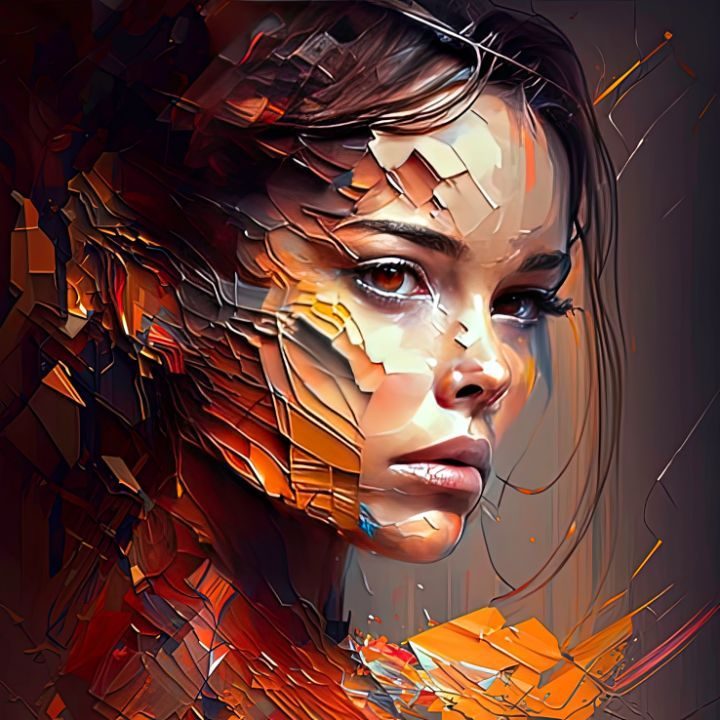
📷 Photo by pinterest.com
Final Inspection
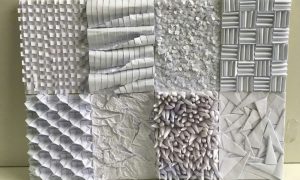
Before submitting your file, run a final metadata check. Ensure the image is oriented correctly and that any text layers have been converted to outlines or embedded properly. If you are working with a gallery printer, communicate clearly about the desired paper texture. A heavy, cold-press rag paper will yield a completely different aesthetic than a smooth, hot-press finish, and your digital file should reflect those differences in its final contrast settings.
Read also: Best Stylus Pen Replacement Nibs: Felt vs Plastic for Drawing
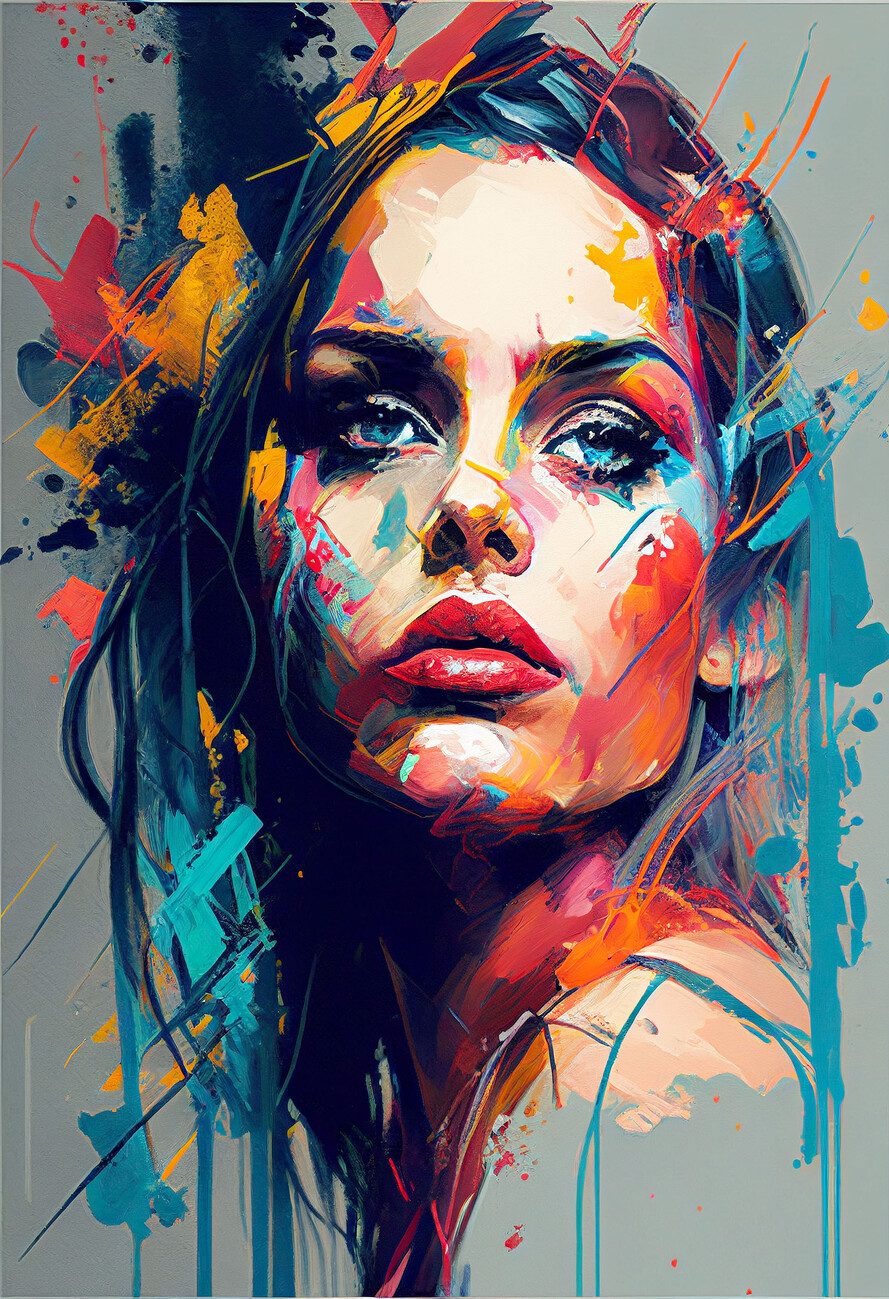
📷 Photo by europosters.fr