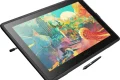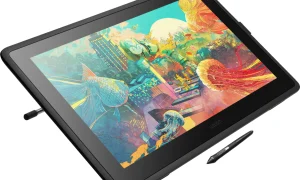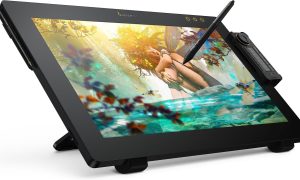






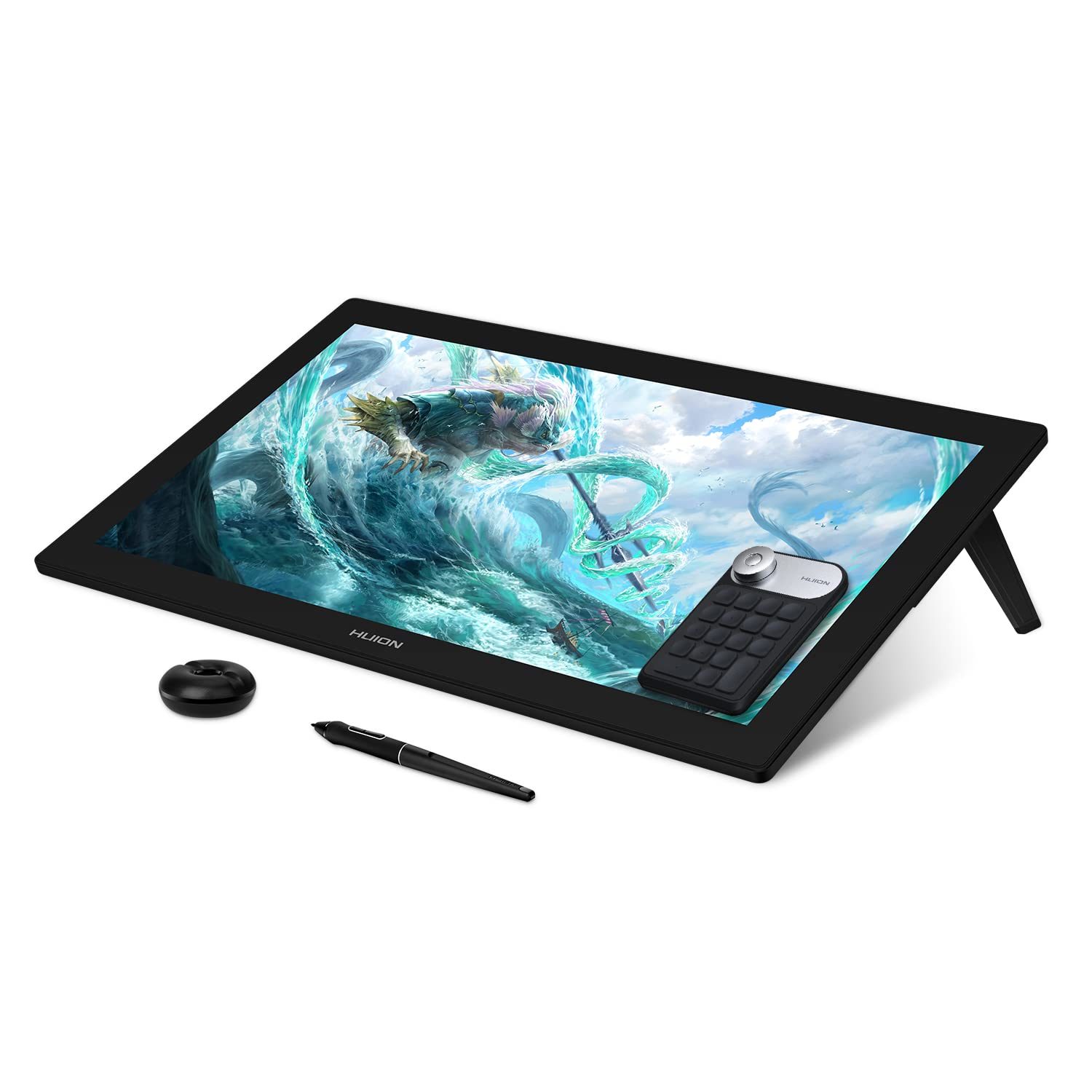
Innerspark.us – The best 4K drawing tablets for concept artists and matte painters are high-resolution pen displays that offer professional-grade color accuracy, minimal parallax, and a vast workspace, with the Wacom Cintiq Pro 27 and Huion Kamvas Pro 24 (4K) currently leading the market.
For professionals in concept art and matte painting, the transition to 4K resolution is not merely a luxury but a necessity for pixel-perfect detail management. At 4K, fine brush strokes, intricate texture overlays, and complex photo-bashing layers become significantly easier to manage without constant zooming. A higher pixel density ensures that what you see on your screen translates faithfully to the final render, reducing the risk of artifacts or blurring that often plague lower-resolution displays.
Key Hardware Considerations for Digital Artists
When selecting a 4K tablet, the primary factor is the display technology. Concept artists require wide color gamuts, typically covering 99% of Adobe RGB or DCI-P3 color spaces. If your work involves matte painting for film, color consistency is paramount. A tablet that supports 10-bit color depth is essential to avoid banding in complex gradients, such as sunset skies or atmospheric fog effects. Furthermore, the pen technology must provide low initial activation force and high pressure sensitivity, ensuring that every subtle stroke is captured with precision.
Another critical aspect is the surface texture. Matte painters often prefer a slightly etched glass surface that mimics the friction of paper. However, this must be balanced against the clarity of the 4K display. Excessive etching can cause “sparkle” or graininess, which undermines the sharpness of a 4K panel. Finding a tablet that offers a smooth yet tactile experience is the “holy grail” for digital painting.
| Feature | Wacom Cintiq Pro 27 | Huion Kamvas Pro 24 (4K) | XP-Pen Artist Pro 24 (Gen 2) |
|---|---|---|---|
| Resolution | 3840 x 2160 | 3840 x 2160 | 3840 x 2160 |
| Color Accuracy | 99% Adobe RGB | 98% Adobe RGB | 99% Adobe RGB |
| Refresh Rate | 120Hz | 60Hz | 144Hz |
| Pen Sensitivity | 8192 levels | 16384 levels | 16384 levels |
Optimizing Your Workflow for 4K Resolution
Setting up a 4K workflow requires more than just high-end hardware; it involves configuring your software and environment to prevent eye strain and hardware bottlenecks. Large canvases at 4K resolution consume significant RAM and GPU resources. Ensure your workstation is equipped with at least 32GB of RAM and a dedicated graphics card capable of handling high-resolution outputs through DisplayPort or USB-C connectivity.
Once the hardware is connected, follow these steps to optimize your drawing environment:
- Calibrate your display using a hardware colorimeter immediately upon setup to ensure the factory settings meet your specific workspace lighting conditions.
- Adjust the UI scaling within your operating system to ensure that toolbars and menus remain readable, as 4K resolution can make interface elements appear tiny.
- Customize your tablet’s express keys or remote to handle high-frequency actions like brush resizing, zooming, and layer toggling to save time during long painting sessions.
- Configure your software’s “Canvas Rotation” and “Flip Canvas” shortcuts to be easily accessible, as these are vital for maintaining correct anatomy and perspective in concept art.
- Set your brush engine settings to match the high-resolution input, ensuring that the pressure curve feels natural and responsive on the 4K surface.
Common Mistakes and How to Avoid Them
A frequent error among artists upgrading to 4K is ignoring the physical ergonomics of the workspace. Because 4K tablets are often large, artists may neglect the viewing angle or distance. Working too close to a large 4K screen can cause neck strain and make it difficult to view the overall composition of a matte painting. Always mount your tablet on a sturdy, adjustable arm or stand that allows for various tilt angles, enabling you to switch between a flat drawing posture and an upright display posture.
Another mistake is the lack of proper cable management. High-resolution signals require high-bandwidth cables. Using cheap or damaged cables can lead to screen flickering or resolution drops, where the tablet defaults to 1080p. Invest in high-quality, shielded cables to maintain the integrity of the 4K signal. Additionally, ensure that your drivers are updated regularly, as 4K tablets often rely on complex driver software to manage the high-resolution input and pen tracking.
Read also: How to Build a 3D Character Art Portfolio for AAA Game Studios
The Impact of Refresh Rates on Performance
While resolution is the headline feature, refresh rate is the silent productivity booster. A 120Hz or 144Hz refresh rate provides a significantly more fluid drawing experience compared to standard 60Hz panels. For matte painters who perform rapid, sweeping strokes or intricate masking, a higher refresh rate minimizes the latency between the pen movement and the visual output. This reduction in “pen lag” is crucial for maintaining focus and preventing the disconnect that can occur when the digital ink trails behind the physical hand movement.
Addressing Potential Risks
One risk of moving to a 4K workflow is the “performance wall.” If your computer is aging, rendering large files at 4K can lead to stuttering in brushes and slow save times. Always monitor your GPU usage and disk write speeds. If you experience lag, consider working on a lower-resolution proxy file for blocking in shapes and colors, then switching to the full 4K file for the final detailing and texture passes. This hybrid approach preserves the benefits of 4K without sacrificing efficiency during the early stages of concept development.
Q: Is a 4K tablet necessary for beginners, or just for professionals?
A: While professionals benefit most from the increased canvas space and detail, beginners can also benefit. However, the high cost of 4K tablets is usually better justified once your workflow requires high-fidelity output for print or production.
Q: Does 4K resolution make the interface of software like Photoshop harder to use?
A: It can make interface elements appear very small. Most modern software allows for UI scaling, which solves this problem, but you may need to adjust your OS-level scaling settings to ensure a comfortable viewing experience.
Q: Can I use a 4K tablet as a second monitor for general tasks?
A: Yes, most 4K pen displays function excellently as secondary high-resolution monitors. Their superior color accuracy often makes them better for color-critical work, such as video editing or photo retouching, even when you are not actively using the pen.
📷 Photo by nellisauction.com