





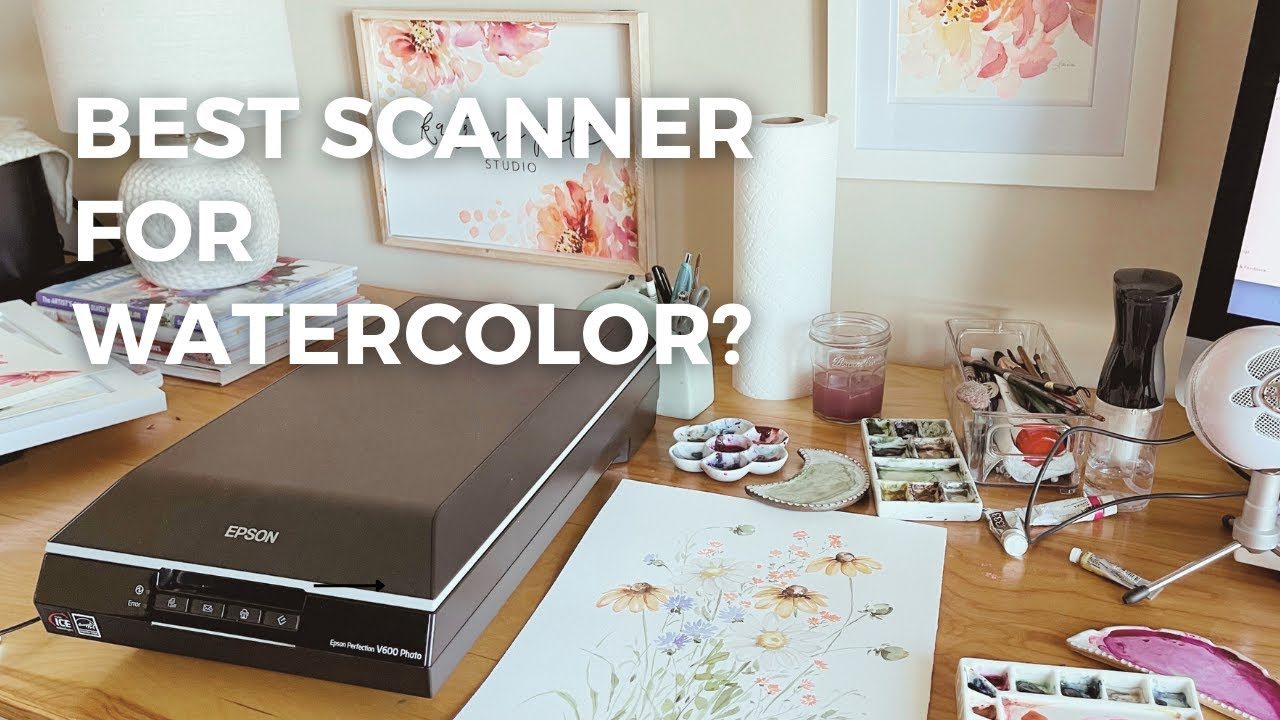
Innerspark.us – Digitizing watercolor paintings requires a combination of flat lighting, high-resolution scanning or photography, and meticulous post-processing to ensure the delicate textures and color nuances are preserved for professional-grade printing.
Watercolor art presents a unique challenge for digitization because of its granular texture, transparency, and subtle gradients. Unlike flat digital graphics, watercolor paper has a physical tooth that catches light, which can create unwanted shadows if handled incorrectly. Achieving a high-resolution digital file that looks identical to the original painting on paper depends on how you manage light, capture resolution, and treat the image in editing software.
The Setup: Scanning vs. Photography
The first decision you must make is whether to use a flatbed scanner or a DSLR/mirrorless camera. For small paintings up to A4 size, a high-quality flatbed scanner is often the superior choice because it provides consistent, even lighting without the risk of barrel distortion or perspective issues. Ensure your scanner settings are set to at least 600 DPI, though 1200 DPI is recommended if you intend to enlarge the print significantly.
If your artwork is larger than your scanner bed, photography is the only viable path. You will need a tripod to keep the camera perfectly parallel to the artwork. Position your lights at 45-degree angles on both sides of the painting to eliminate glare and hotspots. Using a polarized light source or a circular polarizer on your lens can further help cut down on the sheen from concentrated pigments or glossy varnishes.
Essential Technical Checklist for Success
Before you begin the capture process, use this checklist to ensure your equipment and environment are optimized for the best possible reproduction.
| Factor | Recommended Setting or Action |
|---|---|
| Resolution | 600 DPI minimum for standard prints; 1200 DPI for large enlargements. |
| Color Profile | Adobe RGB (1998) or ProPhoto RGB to capture the widest gamut. |
| File Format | TIFF (uncompressed) or RAW for maximum data retention. |
| Lighting | Daylight-balanced (5000K-5600K) to ensure color accuracy. |
Step-by-Step Digitization Workflow
Follow these steps to ensure your digital file remains faithful to the tactile nature of your watercolor work.
- Clean your scanner glass or prepare your studio space to be free of dust, as high-resolution scans will pick up every stray fiber.
- Secure the painting to a flat surface using non-damaging adhesive like painter’s tape to ensure the paper remains perfectly flat, as waves in the paper will distort the image.
- Set your camera or scanner to the highest bit depth available (16-bit) to allow for smoother color transitions during the editing phase.
- Capture the image, ensuring that the histogram shows no clipped highlights or crushed shadows.
- Import the file into photo editing software and perform a white balance adjustment using a neutral gray card that was placed in the frame during the initial capture.
- Carefully remove dust spots and imperfections using the healing brush tool, being mindful not to remove the natural texture of the watercolor paper.
- Save your master file as a TIFF and create smaller versions for web or print previews as needed.
Common Mistakes to Avoid
One of the most frequent errors artists make is relying on automatic color settings. Automatic white balance in cameras often tries to neutralize the warmth of the paper, which can strip the painting of its intended mood. Always shoot in manual mode and manually set your white balance to match your light source.
Another common pitfall is over-sharpening the image during post-processing. Watercolor art is soft and organic; applying too much “clarity” or “sharpness” in software can make the paint look harsh and digital. Instead, focus on adjusting the contrast and saturation levels to match the original piece. If the paper texture looks too aggressive, use a subtle noise reduction filter to smooth out the scanned grain without losing the detail of the brushstrokes.
Why Color Management Matters
The bridge between your screen and the printer is color management. If your monitor is not calibrated, the colors you see while editing will not match the colors that come out of the printer. Invest in a monitor calibration tool to ensure that what you see is what you get. Furthermore, ensure that your working color space is set to Adobe RGB rather than sRGB. While sRGB is standard for web use, it lacks the color depth required for high-quality fine art printing, particularly in the vibrant blues and greens often found in watercolor pigments.
Read also: Presentation Book vs Loose Prints in a Portfolio Box: Which Is Best?
Frequently Asked Questions
Q: Should I scan in color or grayscale?
A: Always scan in full color, even if your painting is monochromatic. Scanning in color captures the subtle shifts in tone and the specific hue of the paper, which adds depth to the final print.
Q: How do I handle large paintings that don’t fit on my scanner?
A: Take multiple high-resolution photos of sections of the painting, ensuring a 20-30% overlap between each shot. Use the “Photomerge” or “Stitch” feature in professional editing software to combine them into one high-resolution master file.
Q: Is it necessary to save as a TIFF file instead of JPEG?
A: Yes, TIFF is a lossless format, meaning it does not compress the data every time you save the file. JPEG compression discards image data to save space, which leads to visible artifacts that will be magnified during the printing process.
By treating the digitization process with the same level of care you give to the actual painting, you ensure that your digital prints serve as a true extension of your artistic vision. Precision in the capture phase minimizes the need for heavy digital manipulation, keeping the soul of the watercolor intact for every print you produce.
📷 Photo by youtube.com