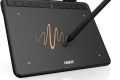



Innerspark.us – The best budget drawing tablet under $100 for digital art beginners is the Huion Inspiroy H1060P, offering a perfect balance of professional-grade pressure sensitivity, a generous active area, and reliable driver support for a fraction of the cost of premium models.
Entering the world of digital art does not require a massive financial investment. While professional illustrators often gravitate toward high-end displays or tablets costing hundreds of dollars, the entry-level market has matured significantly. Modern budget tablets now feature hardware that mimics the performance of devices used by industry veterans, making them ideal for learning the fundamentals of layering, brush dynamics, and stroke control.
Why Budget Tablets Are Sufficient for Beginners
The primary function of a graphics tablet is to translate your hand movements onto a digital canvas. For a beginner, the most critical features are pressure sensitivity and surface texture. Most budget tablets under $100 offer 8,192 levels of pressure sensitivity, which is the current industry standard. This allows you to vary line thickness and opacity naturally, just as you would with a pencil or a physical brush.
Furthermore, these devices are designed to be “plug-and-play.” They eliminate the intimidation factor often associated with complex creative setups. By focusing on a tablet without a built-in screen—often called a pen tablet—you are forced to develop hand-eye coordination, which is a foundational skill for any digital artist. This practice prepares you for more advanced equipment in the future.
Key Comparison of Top Budget Tablets
| Model | Active Area | Pressure Levels | Best Feature |
|---|---|---|---|
| Huion Inspiroy H1060P | 10 x 6.25 inches | 8,192 | Large workspace and tilt support |
| Wacom Intuos Small | 6.0 x 3.7 inches | 4,096 | Industry-leading build quality |
| XP-Pen Deco 01 V2 | 10 x 6.25 inches | 8,192 | Excellent pen ergonomics |
| Gaomon S620 | 6.5 x 4 inches | 8,192 | Ultra-portable and affordable |
Essential Steps to Setting Up Your First Tablet
Setting up your new device correctly is the difference between a frustrating experience and a creative breakthrough. Follow these steps to ensure your hardware functions optimally:
- Download the latest driver from the manufacturer’s official website rather than using the included CD, as online versions are always more up-to-date and bug-free.
- Connect your tablet to a USB port directly on your computer’s motherboard, especially if you are using a desktop, to ensure a stable power supply and minimal latency.
- Open your preferred drawing software—such as Krita, FireAlpaca, or Medibang Paint—and navigate to the tablet settings to calibrate the pressure curve to your personal hand weight.
- Assign your most-used shortcuts, like “Undo” or “Brush Size,” to the physical express keys on the tablet to speed up your workflow.
- Practice drawing basic shapes and straight lines for 15 minutes to adjust to the tactile feel of the stylus on the plastic surface.
Common Mistakes to Avoid
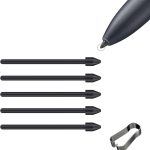
Many beginners make the mistake of focusing too much on the specs rather than the ergonomics. Holding the stylus too tightly is a common issue that leads to hand fatigue and shaky lines. Try to maintain a relaxed grip, similar to how you would hold a fountain pen. Additionally, neglecting to change your nibs (the tip of the stylus) can lead to scratches on your tablet surface. When the nib becomes sharp or flat, replace it immediately to keep your strokes smooth.
Read also: How to Pitch Your Art to Commercial Licensing Agents
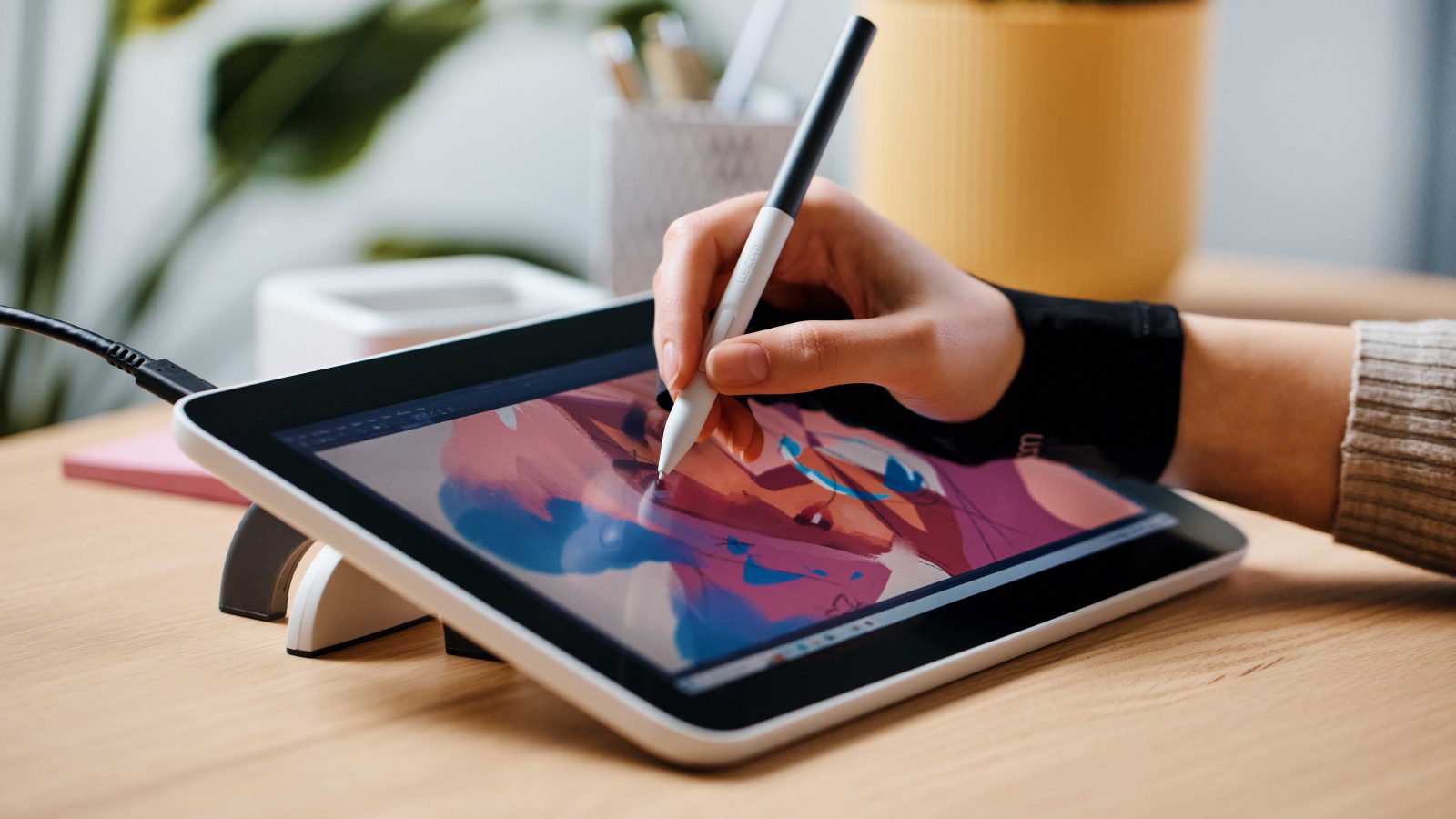
📷 Photo by digitalcameraworld.com
Another frequent error is failing to manage your workspace. Because budget tablets are often smaller, you might feel tempted to hunch over your desk. Ensure your monitor is at eye level and your tablet is positioned comfortably in front of you. Proper posture prevents long-term physical strain and allows you to draw for longer sessions without discomfort.
Understanding Software Compatibility
Hardware is only half the battle. A great tablet is useless if your software does not support pressure sensitivity. Many beginners mistakenly use basic programs like Microsoft Paint, which lack the necessary drivers to communicate with graphics tablets. Always ensure you are using software that supports tablet input. Free options like Krita are powerful enough to be used by professionals and offer extensive customization for brush stabilization, which helps beginners create cleaner lines while they are still developing their motor skills.
Frequently Asked Questions
Q: Do I need a screen tablet to learn digital art?
A: No. Pen tablets without screens are arguably better for beginners because they encourage you to look at your monitor, which is a better ergonomic practice for your neck and posture.
Q: Will these tablets work on my laptop?
A: Yes, as long as your laptop has an available USB port and is running a compatible operating system like Windows or macOS. Most budget tablets are also compatible with Android devices via an OTG adapter.
Q: How long do these tablets typically last?
A: With proper care, a budget tablet can last anywhere from three to five years. The most common point of failure is the USB cable, which is inexpensive and easy to replace.
Final Advice for Aspiring Artists
The “best” tablet is ultimately the one you use consistently. Do not get caught in the trap of thinking that a more expensive device will make you a better artist. Digital art is a skill honed through repetition, experimentation, and observation. By starting with a sub-$100 tablet, you remove the barrier of cost and allow yourself the freedom to fail, learn, and grow without the pressure of having spent a fortune on gear. Focus on the fundamentals of line weight, color theory, and composition, and your skills will inevitably outpace your equipment.
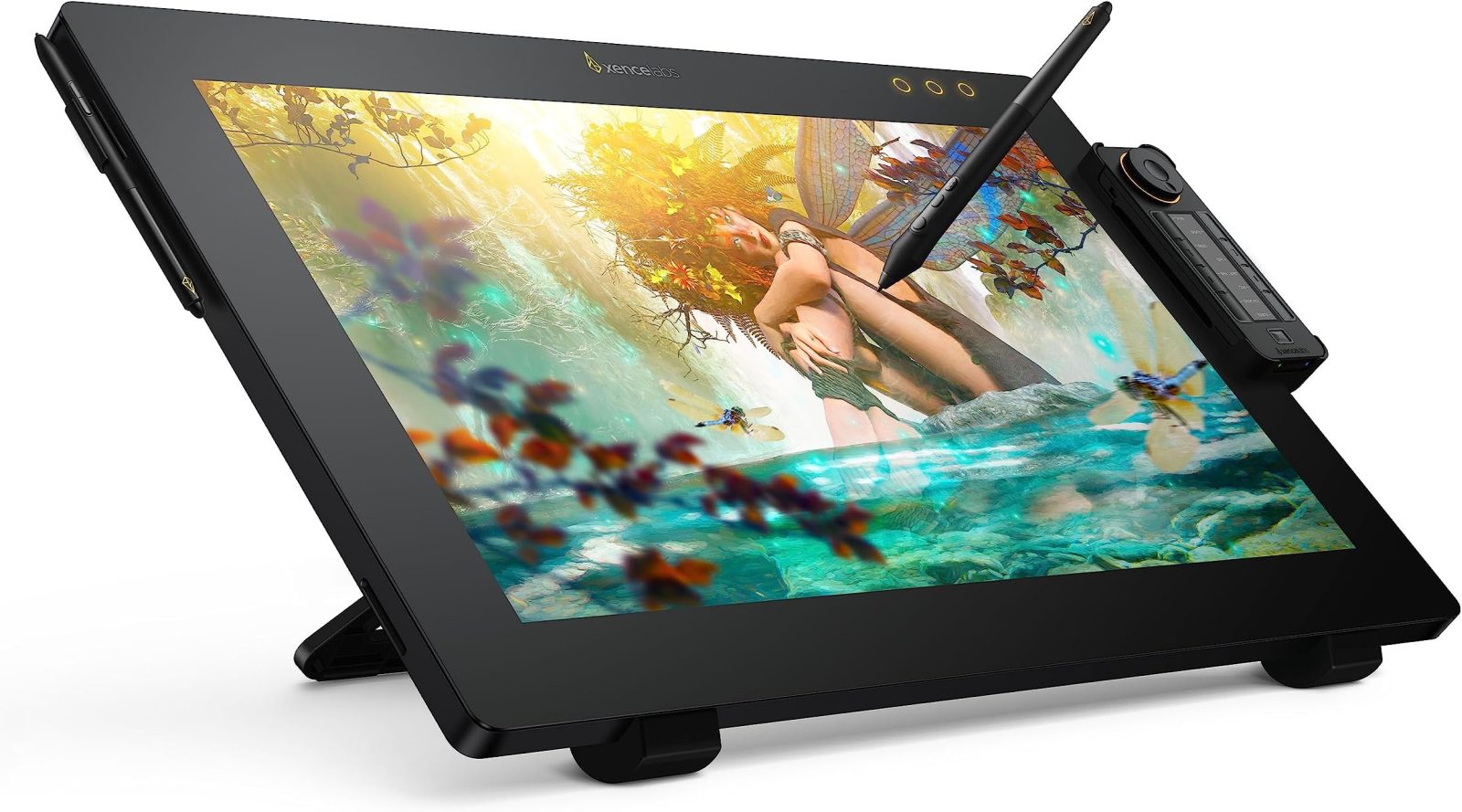
📷 Photo by amazon.com