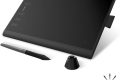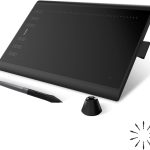




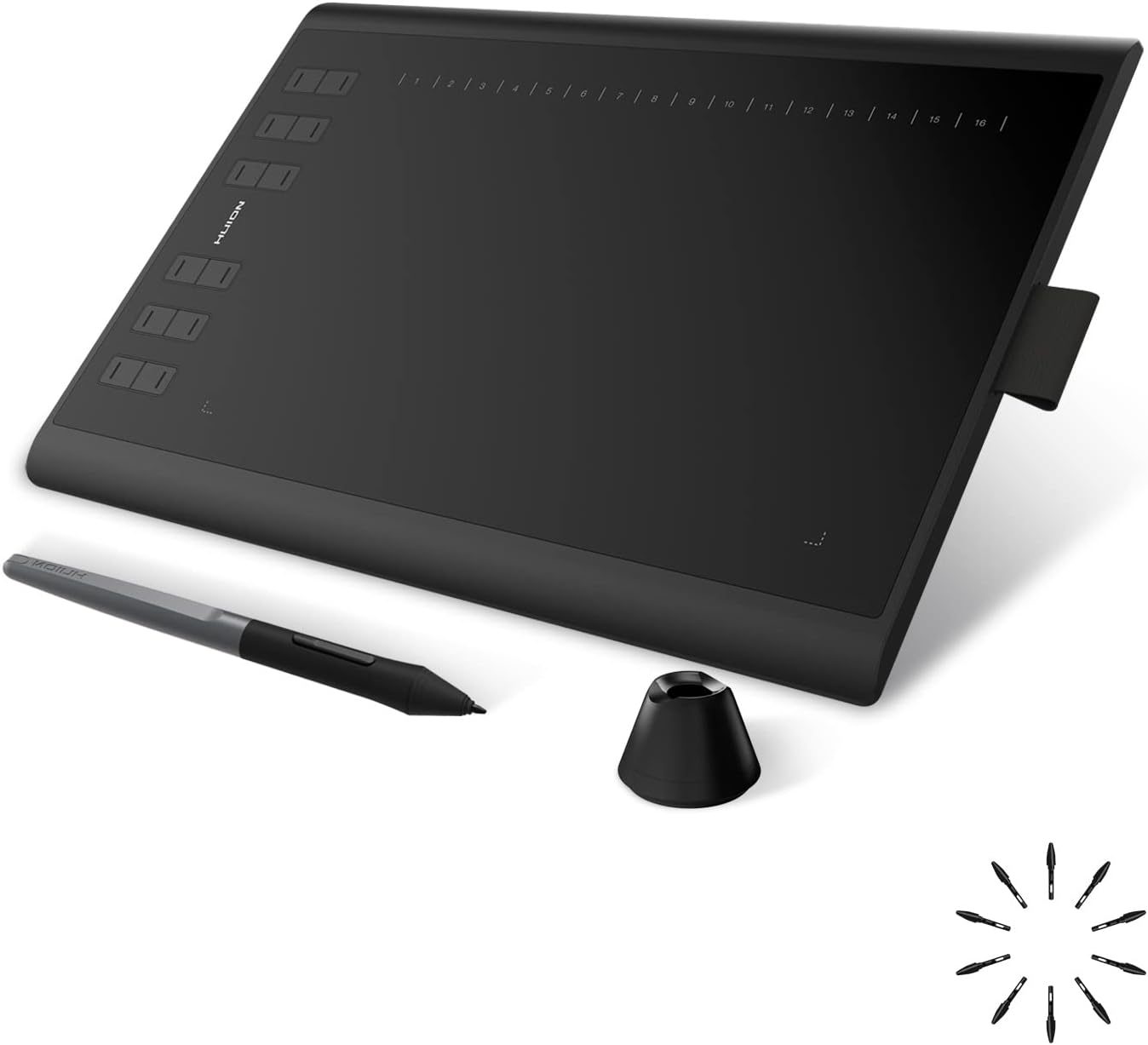
Innerspark.us – The best drawing tablet for vector illustration in Adobe Illustrator is the Wacom Intuos Pro (Medium), as it provides the most precise pressure sensitivity and customizable physical controls that seamlessly map to Illustrator’s complex keyboard shortcuts.
Vector illustration demands a unique set of hardware requirements compared to raster-based painting. Because Adobe Illustrator relies heavily on anchor points, paths, and mathematical precision, the ideal tablet must offer high resolution, minimal input lag, and excellent integration with modifier keys. While many artists gravitate toward screen tablets, professionals often find that a high-quality pen tablet (without a screen) offers better ergonomics for long-term vector work.
Why Vector Illustration Requires Specific Hardware
In vector workflows, you are not just painting pixels; you are manipulating lines. This requires a stable hand and a pen that does not skip when you are trying to close a path or adjust a Bezier handle. Adobe Illustrator is a software environment where speed is king. A tablet that allows you to map “Undo,” “Delete Anchor Point,” and “Convert Anchor Point” to physical buttons on the device will significantly outperform a standard mouse or a basic entry-level tablet.
Another often overlooked factor is the surface texture. Vector work requires precise movements. A surface that is too smooth can feel like drawing on glass, leading to shaky lines. Tablets with a textured overlay provide the friction necessary to make deliberate, controlled movements when drawing complex vector shapes.
Comparison of Top Tier Vector Drawing Tablets
| Model | Best For | Key Advantage |
|---|---|---|
| Wacom Intuos Pro | Professional Vector Work | Unmatched pressure precision and shortcut customization |
| Huion Inspiroy Dial 2 | Budget-Conscious Illustrators | Physical dial for zooming and brush size control |
| XP-Pen Deco Pro | Ergonomic Comfort | Double wheel interface for rapid tool switching |
| iPad Pro with Apple Pencil | Portable Vector Illustration | Integration with Adobe Illustrator for iPad |
Optimizing Your Tablet for Adobe Illustrator
Setting up your hardware is only half the battle. To truly leverage a tablet for vector art, you must configure your driver software to match your workflow. Most professionals fail to realize that the default settings for pen pressure are often too sensitive for vector work, which can lead to unpredictable line weights when using the Blob Brush tool.
Follow these steps to ensure your tablet is optimized for vector precision:
- Open your tablet driver utility and create a specific profile for Adobe Illustrator.
- Adjust the pressure curve to be slightly “stiffer” so that you have to apply more deliberate force to reach maximum stroke width.
- Map the side buttons of your stylus to “Right Click” and “Shift” or “Alt,” as these are the most common keys used to manipulate anchor points.
- Enable Windows Ink or Mac equivalent settings only if you experience lag in the path-drawing process.
- Calibrate the tablet area to match your screen aspect ratio exactly to avoid distorted or “stretched” circles and shapes.
Common Pitfalls When Transitioning to Tablets for Vectors
The most common mistake artists make is attempting to draw vector paths exactly like they draw in Photoshop. In vector software, you should focus on creating “clean” paths with the fewest number of anchor points possible. Using a tablet does not mean you should trace everything with a shaky, organic hand. Instead, use the pen to place points precisely, then use the Direct Selection tool to nudge them into place.
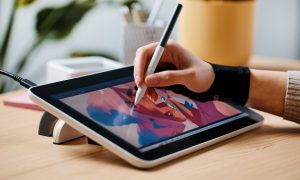
Another issue is the reliance on screen tablets. While drawing directly on the screen is intuitive, it can lead to “text neck” and poor posture. Many illustrators find that using a non-screen tablet actually improves their posture, as they can sit upright and look directly at their monitor while their hand moves naturally on the desk surface. If you choose a screen tablet, ensure it is mounted on an adjustable arm to keep your eye level correct.
The Role of Pressure Sensitivity in Vector Tools
In Adobe Illustrator, the Blob Brush and the Calligraphic Brush tools utilize pressure sensitivity to vary the thickness of the stroke. If you are doing flat, minimalist vector art, you might not need extreme pressure sensitivity. However, if you are doing hand-lettering or intricate character design, high-end pressure sensitivity (8192 levels) is essential. It allows for the subtle tapers at the end of lines that give vector art a more “human” and organic feel.
Furthermore, tilt sensitivity is becoming increasingly important. Adobe Illustrator now supports tilt-sensitive brushes that mimic real-world media like charcoal or ink. If your workflow involves a mix of vector shapes and textured brushwork, ensure your tablet supports at least 60 degrees of tilt recognition.
FAQ
Q: Do I really need a professional tablet if I am just starting with vector art?
A: Not necessarily. If you are a beginner, a mid-range tablet from brands like Huion or XP-Pen will provide 90% of the functionality of a professional Wacom at a fraction of the cost. Focus on build quality and the availability of physical shortcut keys.
Q: Is a screen tablet better than a standard pen tablet for Adobe Illustrator?
A: It depends on your preference. A screen tablet is more intuitive for tracing, but a standard pen tablet is generally better for ergonomics and allows for more fluid wrist movements, which is often better for creating clean, smooth Bezier curves.
Q: Can I use a Bluetooth tablet for professional vector work?
A: While modern Bluetooth connections are fast, professional illustrators usually prefer a wired connection to avoid any potential input lag or interference. For high-stakes deadlines, a USB-C connection remains the gold standard for stability.
Ultimately, the best tablet is one that disappears into your workflow. It should feel like a natural extension of your hand, allowing you to manipulate anchor points and paths without thinking about the hardware. Whether you opt for a high-end Wacom or a feature-rich budget alternative, prioritize a device that offers robust shortcut customization, as this is the single biggest factor in speeding up your vector illustration process in Adobe Illustrator.
Read also: How to Get Your First Gallery Art Exhibition as an Unknown Artist
📷 Photo by amazon.com