

Innerspark.us – The best drawing tablet for Photoshop and Clip Studio Paint is the Wacom Cintiq Pro 24, as it offers the perfect balance of industry-standard color accuracy, pressure sensitivity, and seamless software integration for professional illustrators.
Choosing the right hardware for digital art requires more than just picking the most expensive screen. Adobe Photoshop and Clip Studio Paint (CSP) demand high-performance hardware that can handle complex brush engines, large canvas sizes, and multi-layered projects without latency. For professional artists, the input device acts as an extension of the hand, making responsiveness and tilt sensitivity critical factors in the decision-making process.
Key Considerations for Digital Artists
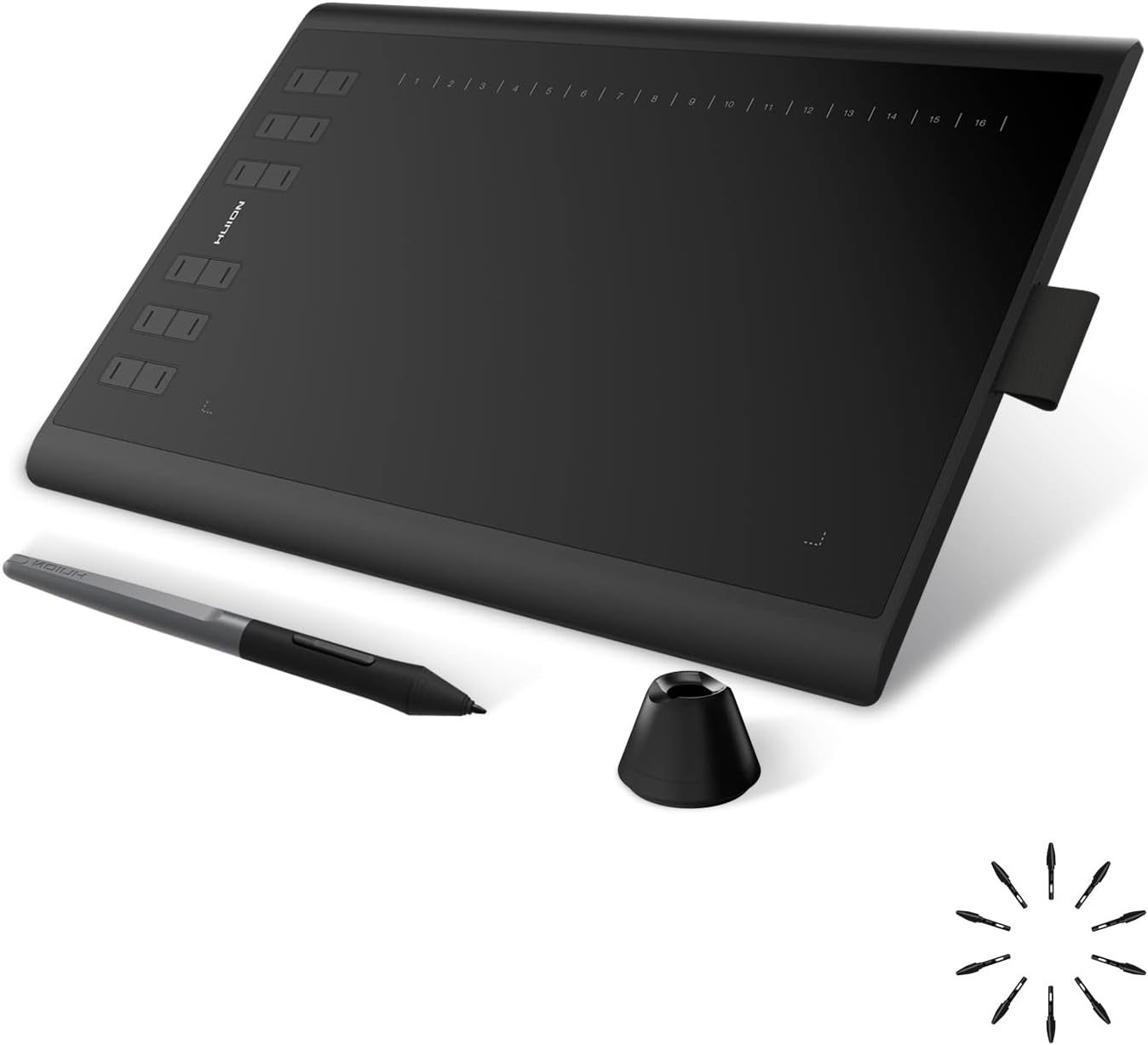
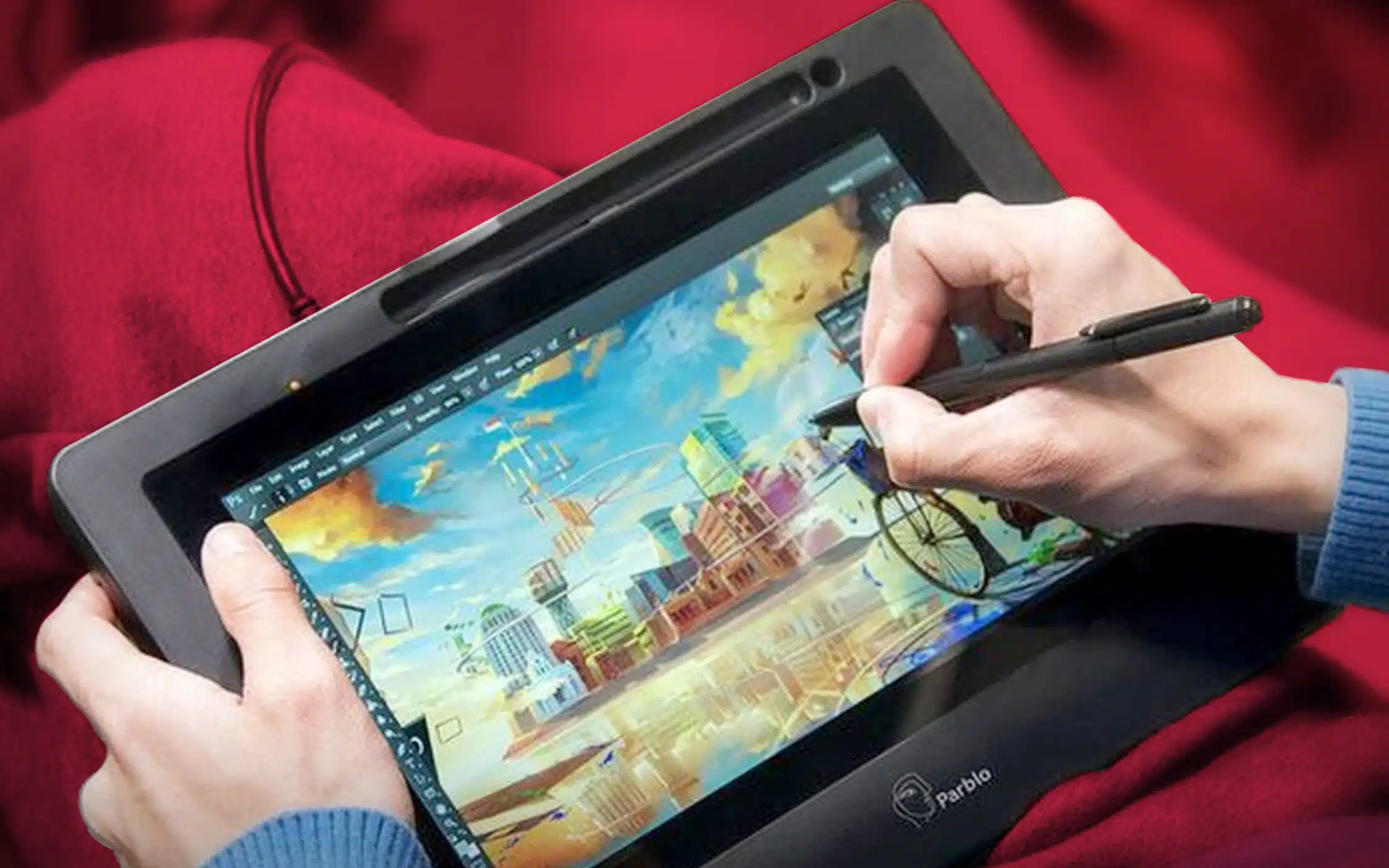
When selecting a tablet, you must consider the display type. Pen displays, which allow you to draw directly on the screen, provide a more intuitive experience similar to traditional media. Pen tablets, which require you to look at a monitor while drawing on a surface, offer better ergonomics and are often more affordable. For Photoshop and CSP users, color space coverage is paramount. If you intend to print your work, you need a tablet that covers at least 99% of the Adobe RGB color gamut to ensure your digital colors match your physical output.
Performance and Compatibility
📷 Photo by atlantafigures.org
Clip Studio Paint is highly optimized for vector-based lines and complex brush dynamics, while Photoshop is a resource-heavy beast that thrives on high-resolution displays. A tablet with at least 8,192 levels of pressure sensitivity is the current industry standard. This allows for subtle transitions in line weight and opacity, which are essential for professional-grade shading and line art. Furthermore, the refresh rate of the tablet screen should be at least 60Hz to prevent eye strain and ensure your strokes appear instantly beneath your pen tip.
Comparison of Leading Drawing Tablets
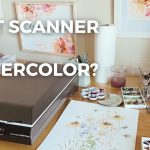
Read also: How to Digitize Watercolor Paintings for High-Resolution Printing
| Model | Active Area | Pressure Levels | Best For |
|---|---|---|---|
| Wacom Cintiq Pro 24 | 24 Inches | 8,192 | Professional Studio Work |
| Huion Kamvas Pro 24 | 23.8 Inches | 8,192 | Budget-Conscious Pros |
| XP-Pen Artist Pro 16 | 15.4 Inches | 16,384 | Portable Illustration |
| Wacom Intuos Pro | 12.1 Inches | 8,192 | Ergonomic Focused Artists |
Step-by-Step Setup for Optimal Workflow
Once you have acquired your tablet, the setup process is vital for ensuring that Photoshop and Clip Studio Paint recognize the input correctly. Follow these steps to maximize your hardware potential:
- Install the latest drivers directly from the manufacturer’s website rather than using the included disc, as online drivers are always updated for current OS compatibility.
- Calibrate the pen pressure within the tablet’s control panel. Adjust the sensitivity curve to match your natural drawing force, ensuring you do not have to press too hard to reach maximum opacity.
- Launch Photoshop, go to Preferences, and navigate to Performance settings. Ensure the Graphics Processor is enabled to allow the tablet to utilize GPU acceleration for smoother brush strokes.
- In Clip Studio Paint, navigate to the File menu and select Tablet Settings. Choose “Wintab” if you experience erratic lines or “Tablet PC” if you are using a Windows-based tablet device like a Surface Pro.
- Customize your tablet’s physical express keys. Assign frequently used shortcuts like ‘Undo’, ‘Brush Size’, and ‘Zoom’ to these buttons to reduce reliance on the keyboard.
Common Pitfalls to Avoid
A frequent error among beginners is neglecting the importance of workspace ergonomics. Placing a large pen display flat on a desk can lead to neck strain over long hours. Investing in an adjustable stand that allows you to tilt the tablet to a 30 to 45-degree angle will significantly improve your comfort and posture. Additionally, many artists forget to clean their tablet surface regularly. Dust particles trapped under the pen nib can create micro-scratches on the screen protector, leading to a degraded drawing experience over time.
Understanding Software Integration
Clip Studio Paint and Photoshop handle pen input differently. CSP features a “Stabilization” setting that can be adjusted per brush, which is excellent for smoothing out shaky lines. If your lines look jagged, increase the stabilization level in the Tool Property palette. In Photoshop, the “Smoothing” option in the top toolbar serves a similar purpose. Mastering these software-side settings is just as important as the hardware itself; a high-end tablet cannot compensate for poor software configuration.
Risks of Low-Quality Hardware
Using an entry-level tablet with poor drivers can lead to “jitter”—where straight lines appear wavy or broken. This is a common issue with cheaper digitizers that lack proper electromagnetic resonance (EMR) technology. For professional work, stick to reputable brands that provide long-term driver support. A tablet that receives frequent firmware updates will last significantly longer and remain compatible with future versions of Adobe and Clip Studio software.
Frequently Asked Questions
Q: Do I need a 4K display for my drawing tablet?
A: A 4K display is beneficial for high-resolution photo editing and detailed digital painting, but a 1440p (QHD) display is usually sufficient for most illustrators. Prioritize color accuracy over screen resolution if you are on a budget.
Q: Is it better to use a screenless tablet or a pen display?
A: It depends on your preference. Pen displays are more intuitive for beginners and traditional artists, while screenless tablets are better for posture and allow you to look directly at a larger, high-quality monitor.
Q: Will my tablet work with both Photoshop and CSP?
A: Yes, all major drawing tablet brands are compatible with both programs. Ensure your drivers are updated to the latest version to maintain seamless functionality across different creative software environments.
Ultimately, the best tablet is one that disappears into your workflow. It should feel invisible, allowing you to focus entirely on your composition and color choices. Whether you opt for a high-end Wacom or a competitive alternative from Huion or XP-Pen, focus on the pressure sensitivity and color gamut coverage to ensure your tools support your artistic growth for years to come.
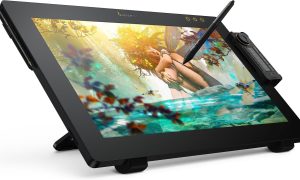
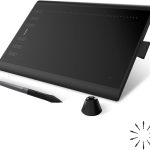
📷 Photo by amazon.com