



Innerspark.us – Mapping express keys on your drawing tablet allows you to assign complex keyboard shortcuts to physical buttons, effectively eliminating repetitive keystrokes and significantly accelerating your digital art workflow.
Why Express Keys Matter for Digital Artists
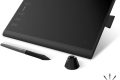
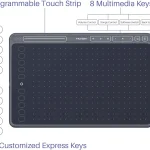
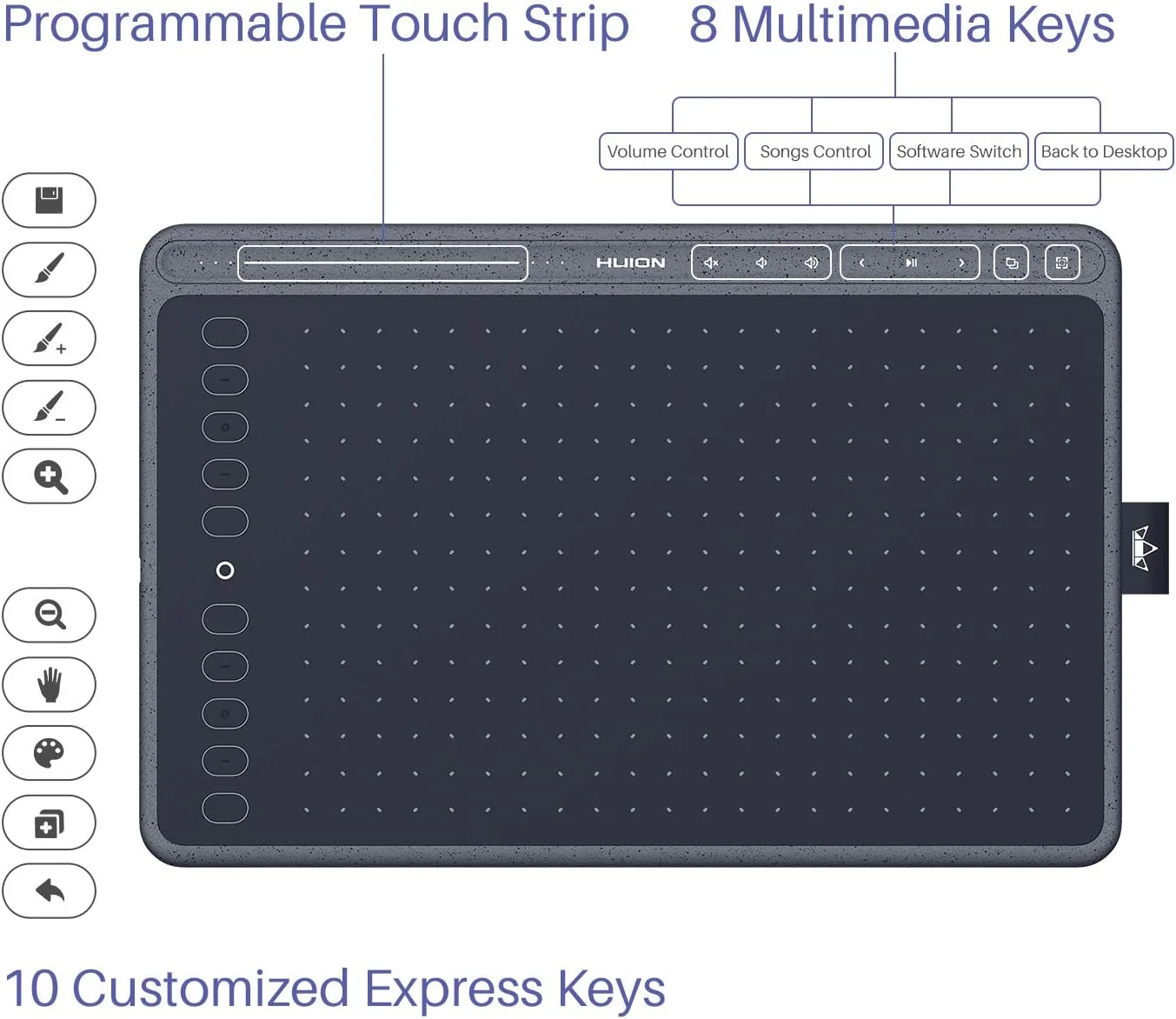
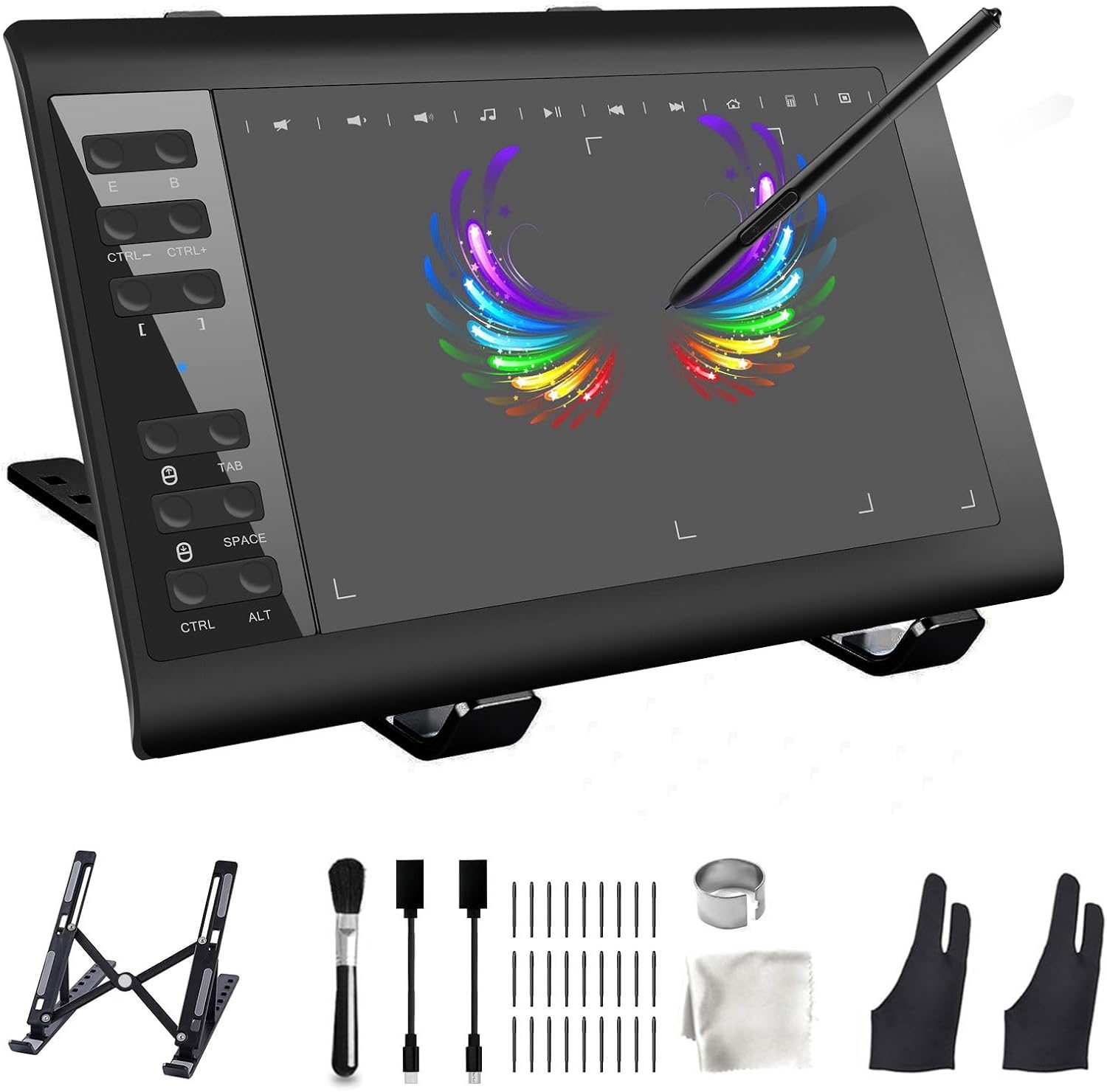
The primary advantage of using express keys is the reduction of hand travel distance. When you constantly switch between your stylus and your keyboard to toggle brushes, undo actions, or zoom in, you break your creative flow. By shifting these essential commands to the buttons located on the side of your tablet, you keep your non-dominant hand stationary and ready to execute commands in milliseconds.
Many professional artists report that mastering their express keys reduced their project completion time by up to 20 percent. Beyond speed, this practice also promotes better ergonomics. By minimizing the need to reach across your desk to hit specific keyboard combinations, you reduce the strain on your shoulders and wrists, which is crucial for long-term health in a creative career.
Common Mistakes When Setting Up Shortcuts
The biggest mistake users make is trying to map every single button at once. This leads to “mental friction,” where you spend more time trying to remember which button does what than actually drawing. Start small by mapping only the three most essential functions you use every single minute, such as Undo, Brush Size, and Zoom.
Another common error is failing to create application-specific profiles. Your needs in Photoshop are vastly different from your needs in Blender or ZBrush. If your tablet driver supports it, create unique profiles for each piece of software you use. This ensures that your buttons perform contextually relevant actions without requiring manual reconfiguration every time you switch programs.
Recommended Configuration Strategy
To build an efficient workspace, categorize your shortcuts based on the frequency of use. You should place the most “destructive” or “corrective” tools within reach of your thumb, while secondary tools can occupy the buttons further up the panel.
| Function Category | Example Shortcut | Suggested Button Position |
|---|---|---|
| Correction | Undo (Ctrl+Z) | Primary (Closest to thumb) |
| Navigation | Hand Tool / Pan | Secondary |
| Adjustment | Brush Size ( [ / ] ) | Tertiary |
| Utility | Color Picker / Eyedropper | Top or Bottom edge |
A Step-by-Step Guide to Mapping Your Keys
Follow these steps to optimize your tablet interface for maximum efficiency:
- Open your tablet manufacturer’s driver software (e.g., Wacom Center, Huion Driver, or XP-Pen Settings).
- Navigate to the “Express Keys” or “Shortcut Settings” tab within the interface.
- Select the specific application profile you wish to configure to ensure these settings only apply to that software.
- Identify the button you want to change and select the “Keyboard” or “Keystroke” input option.
- Record the specific combination of keys (like Ctrl+Alt+Z) that corresponds to the command in your art software.
- Test the button immediately within the software to ensure the command triggers correctly.
- Repeat the process for remaining buttons, starting with the most critical tools, and save your profile.
The Importance of Muscle Memory
Consistency is the secret to speed. If you change your shortcut layout frequently, you will never develop the muscle memory required to work intuitively. Once you find a configuration that feels comfortable, stick with it for at least a month. Your goal is to reach a point where your hand finds the “Undo” button without you ever having to look down at the tablet.
If you find yourself still reaching for the keyboard, it is a sign that your current mapping is either incomplete or unintuitive. Pay attention to which keyboard shortcuts your left hand is currently hunting for during a drawing session. Those are the commands that belong on your tablet express keys.
📷 Photo by amazon.co.uk
Advanced Tips for Productivity
Consider using modifier keys in your mapping. If your tablet software allows it, you can map a button to act as a “Shift,” “Alt,” or “Ctrl” key. This effectively turns your single express keys into a multi-layer system, allowing one button to perform multiple functions depending on whether it is held down or tapped.
Furthermore, avoid mapping complex macros that involve more than three keys simultaneously. These can sometimes fail to register if the timing is slightly off or if the computer is under heavy load. Stick to simple, reliable shortcuts that your software recognizes instantly.
Frequently Asked Questions
Q: Should I map my express keys to the same functions in every program?
A: Yes, keep “Undo” and “Hand/Pan” consistent across all software. This builds universal muscle memory, but feel free to customize the remaining buttons for software-specific tasks like layer management or brush selection.
Q: What if I run out of express keys on my tablet?
A: If you have more commands than buttons, consider using a radial menu—a feature found in many modern drivers that pops up a circular interface on your screen when you press a button, giving you access to eight or more additional shortcuts.
Q: Will mapping shortcuts slow down my computer?
A: No, these mappings are handled at the driver level and have zero impact on your computer’s processing speed or performance during intense rendering or painting sessions.
Final Thoughts on Workflow Optimization
Optimizing your tablet is an evolving process. As your skill level grows, your needs will change, and your shortcut setup should adapt accordingly. Do not be afraid to experiment with different layouts, but remember that the ultimate goal is to remove the barrier between your brain and the digital canvas. By spending just thirty minutes setting up your hardware properly, you are investing in hundreds of hours of smoother, faster, and more enjoyable creative work.
📷 Photo by getzella.com