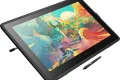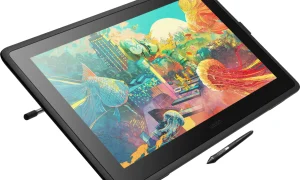




Innerspark.us – Drawing tablet latency and parallax occur when there is a physical gap between the pen tip and the digital ink or a delay in processing input, both of which can be resolved by updating drivers, calibrating screen distance, and optimizing system hardware settings.
Understanding the Core Problem
Latency, often referred to as input lag, is the time delay between the moment your stylus touches the screen and the moment the stroke appears on your monitor. Parallax, on the other hand, is the visual offset caused by the thickness of the glass covering the display. When you hold your pen at an angle, the cursor appears to be floating away from the tip. While newer laminated displays have nearly eliminated parallax, older models and budget tablets still struggle with these physical limitations.
Latency is frequently mistaken for a hardware defect when it is often a software or resource management issue. If your computer is struggling to process high-resolution brushes or too many layers, the tablet will feel sluggish regardless of how expensive it is. Identifying whether the issue is physical, software-based, or system-related is the first step toward a seamless digital art workflow.
Factors Contributing to Tracking Lag
Tracking lag is rarely caused by a single factor. Usually, it is a culmination of driver conflicts, operating system overhead, or hardware bottlenecks. Many users overlook the impact of “Windows Ink” settings, which are designed for handwriting recognition but often interfere with precision drawing applications like Photoshop or Krita. Additionally, running multiple background processes can consume the CPU cycles necessary to render brush strokes in real-time.
Troubleshooting and Optimization Steps
Follow these practical steps to minimize lag and improve the accuracy of your pen input:
- Update or perform a clean reinstall of your tablet drivers. Download the latest version directly from the manufacturer’s website rather than relying on auto-update tools.
- Disable Windows Ink if you are experiencing “drag” or “ripple” effects. This can be done through the tablet’s configuration panel or by creating a text file configuration in the application settings.
- Adjust your monitor’s refresh rate. Ensure your tablet and primary monitor are running at their native refresh rates, as mismatched rates can cause a perceived visual delay.
- Reduce brush stabilization settings in your software. While high stabilization makes lines smoother, it forces the computer to calculate path smoothing, which inherently introduces latency.
- Check your USB connection. Avoid using passive USB hubs or long extension cables, as these degrade signal quality and increase transmission time.
Comparing Tablet Performance Factors
| Factor | Impact on Performance | Recommended Setting |
|---|---|---|
| Brush Stabilization | High | Use 10-20% for sketching; keep low for speed |
| Windows Ink | Medium | Disable for professional art software |
| Resolution | High | Lower document DPI if lag persists |
| Cable Quality | Low to Medium | Use original, short, high-speed cables |
Managing Parallax Effectively
Parallax is a physical reality of non-laminated screens. Because the pen tip is physically separated from the LCD panel by the glass, the only way to mitigate it is through rigorous calibration. Most tablet drivers provide a multi-point calibration tool. When performing this, always hold the stylus exactly as you would while drawing. If you naturally tilt your pen, calibrate while holding it at that specific angle. If you calibrate holding the pen perfectly upright but draw at a 45-degree angle, the parallax will remain noticeable.
Another tip for parallax management is to adjust your seating position. If your eyes are consistently at a different height relative to the screen, the optical offset changes. Maintaining a consistent posture ensures that your brain can naturally compensate for the small, remaining visual gap.
Common Mistakes Artists Make
Read also: Archival Art Paper Weight: Why 300 GSM Is the Industry Standard
A common mistake is assuming that a faster computer will solve all latency issues. While a powerful CPU and GPU help, they cannot fix a poorly optimized driver or a cluttered operating system. Many artists also leave “Smoothing” or “Lazy Nezumi” type plugins turned on at maximum settings, which creates a “dragging” feeling that users often misattribute to hardware lag. Always test your tablet with a basic, hard-round brush with zero smoothing before troubleshooting your hardware. If the lag disappears, the issue is your brush settings, not your tablet.
Furthermore, do not ignore the impact of power-saving features. Laptops often throttle USB power output to save battery, which can cause intermittent tracking issues. Always plug your laptop into a power source and set your Windows power plan to “High Performance” when embarking on a long drawing session.
Frequently Asked Questions
Q: Does the size of the canvas affect my tablet lag?
A: Yes. Working with extremely high resolutions or an excessive number of layers forces your computer to work harder to render strokes, which can create a noticeable delay in input response.
Q: Is wireless connection causing my tracking lag?
A: Bluetooth connections are susceptible to interference from other devices and have lower data polling rates than wired connections, which can lead to jittery tracking and latency.
Q: Why does my pen feel sluggish only in Photoshop?
A: This is usually due to Photoshop’s internal brush engine settings or conflicts with Windows Ink. Ensure that your “Brush Smoothing” is set to a lower value and that you have configured your tablet driver to interact correctly with the Adobe-specific pen settings.
By systematically addressing the software, hardware, and calibration aspects of your setup, you can drastically reduce the barrier between your hand and your digital canvas. Focus on cleaning up your driver environment first, as this is the origin point for the vast majority of tracking issues. Once the software is optimized, physical calibration and workflow adjustments will take care of the remaining nuances, allowing you to focus on your creative output rather than technical interference.
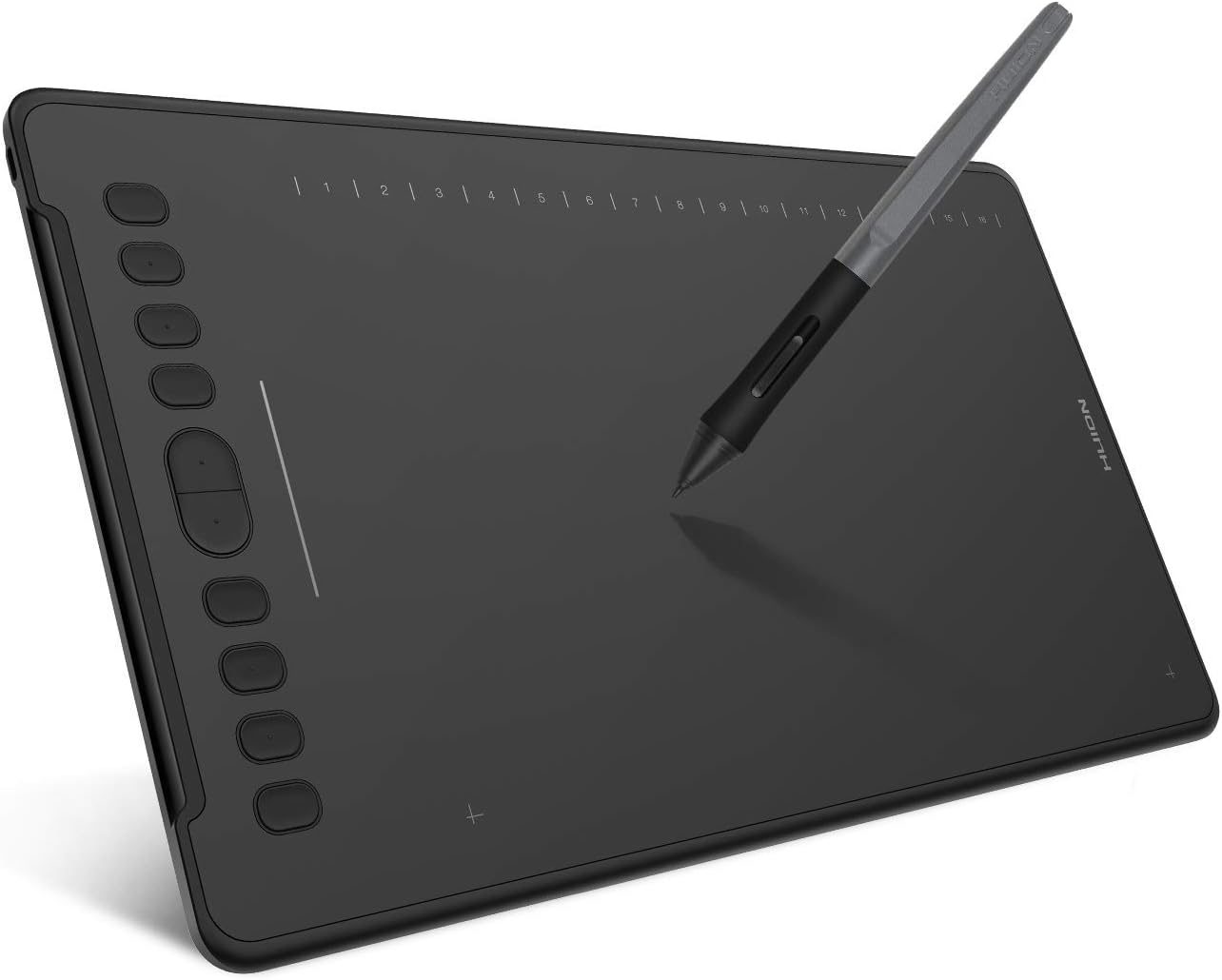
📷 Photo by amazon.ca