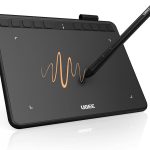



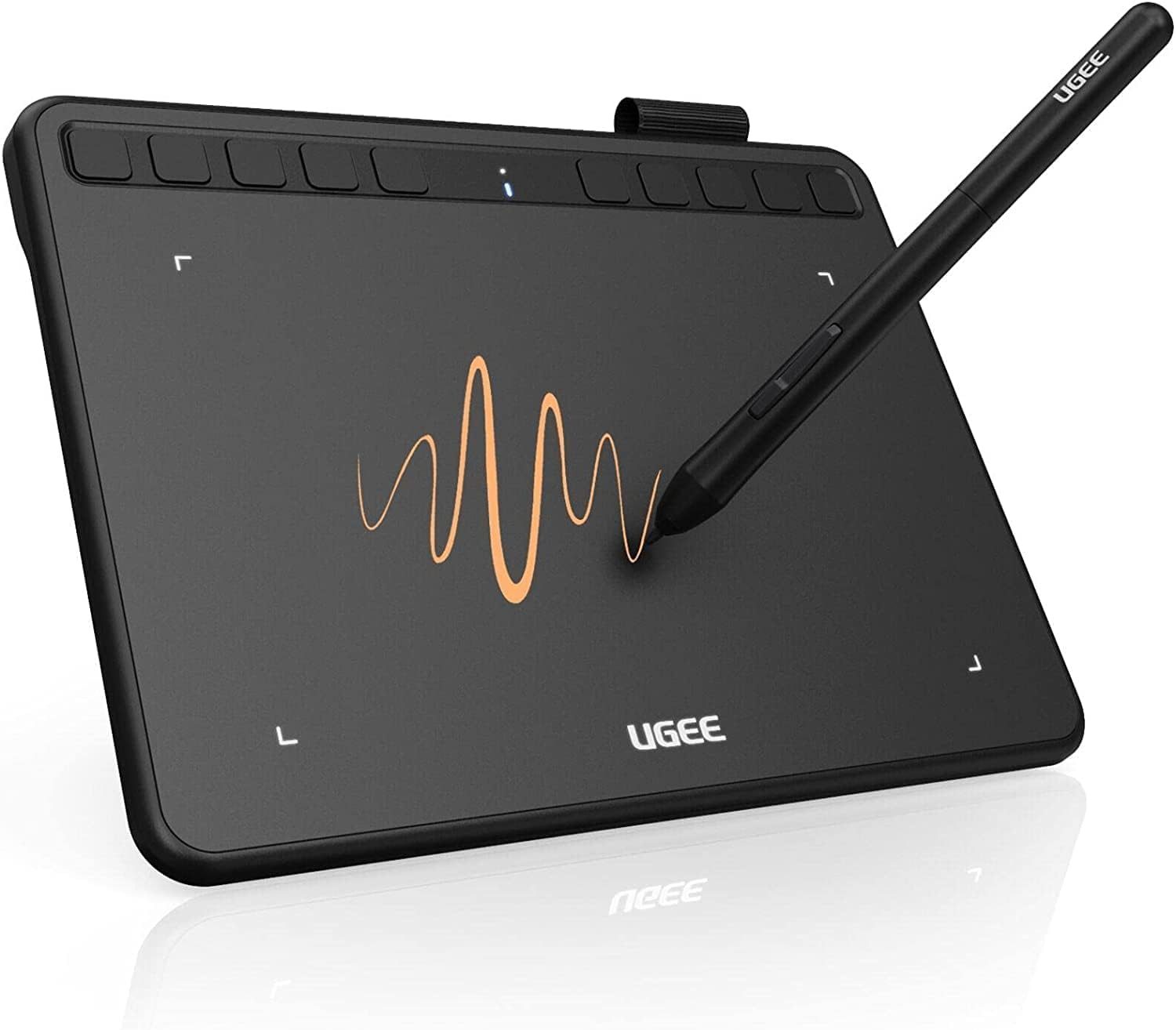
Innerspark.us – A malfunctioning drawing tablet stylus is almost always caused by driver conflicts, outdated firmware, or corrupted configuration files that require a clean reinstallation or a simple service restart to restore pressure sensitivity and tracking.
Common Causes of Stylus Malfunction
When your stylus stops responding, the problem usually stems from a communication breakdown between the hardware and the operating system. The most frequent culprit is a Windows or macOS update that inadvertently overwrites the tablet driver’s necessary permissions. Additionally, conflicting drivers—such as having both Wacom and Huion software installed simultaneously—can cause the system to prioritize the wrong input device, resulting in erratic cursor movement or complete loss of pressure sensitivity.
Another common issue is power management settings. Modern operating systems often attempt to save power by putting USB devices to sleep, which can disconnect the tablet’s digitizer unexpectedly. Finally, physical wear and tear on the stylus nib or a depleted battery (for active pens) should be ruled out before diving into complex software adjustments.
Step-by-Step Troubleshooting Guide
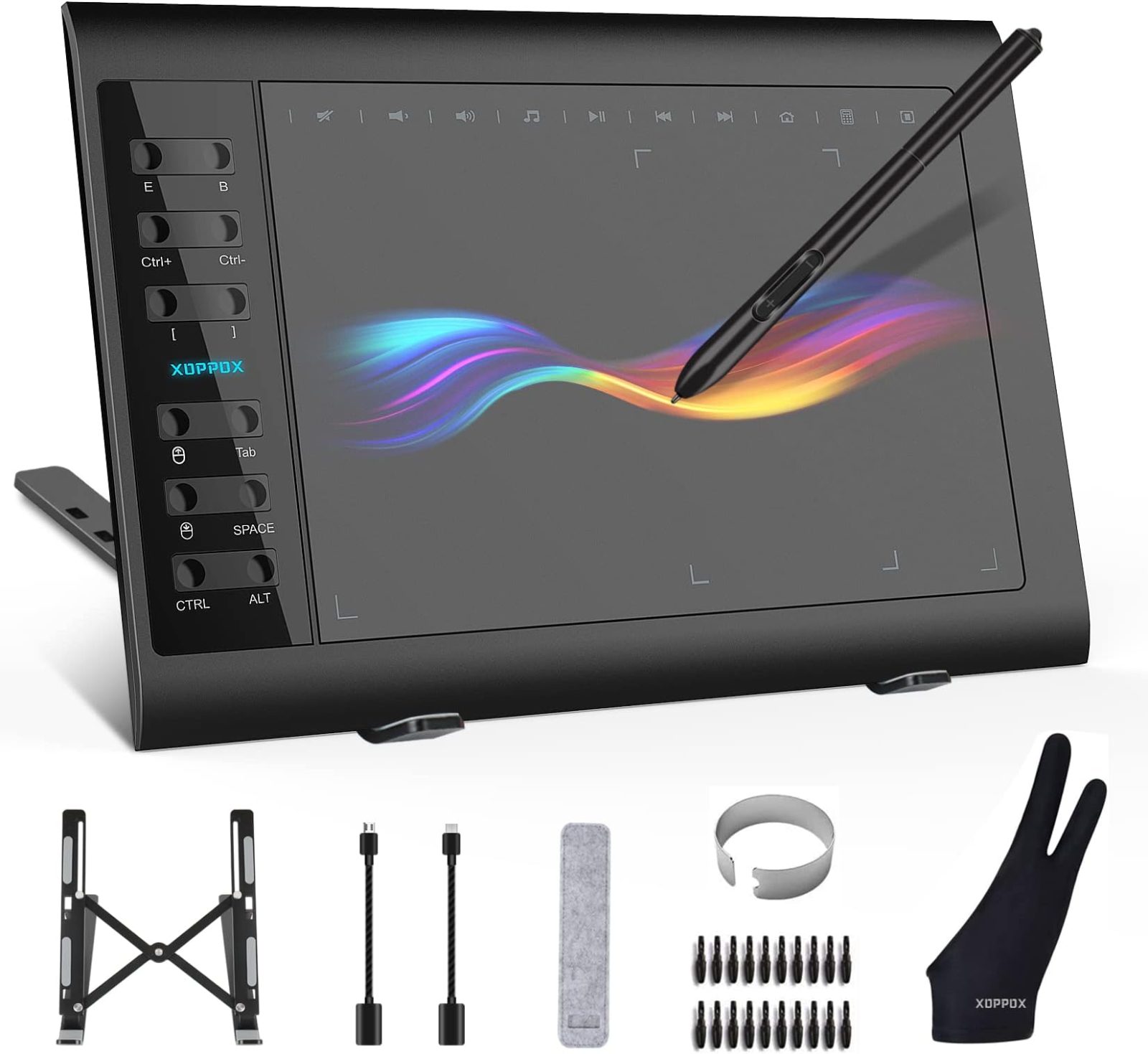
📷 Photo by amazon.in
If your stylus has stopped working, follow this systematic approach to identify and resolve the issue without resorting to a full system wipe.
- Perform a Hard Reset: Unplug the USB cable from your computer, wait ten seconds, and plug it back into a different USB port. Avoid using USB hubs or extension cables, as these often fail to deliver the consistent voltage required for tablet stability.
- Restart the Tablet Service: Open your Task Manager (Windows) or Activity Monitor (macOS). Locate the service associated with your tablet brand (e.g., Wacom Professional Service, Huion Tablet Service). Right-click and select Restart. This often fixes temporary glitches without requiring a reboot.
- Perform a Clean Driver Installation: Uninstall the current tablet driver via your system settings. Once uninstalled, restart your computer. Navigate to the manufacturer’s official website, download the latest version, and install it while your antivirus software is temporarily disabled to ensure all files are written correctly.
- Check Permissions and Accessibility: On macOS, go to System Settings, Privacy & Security, and ensure your tablet driver has Accessibility and Input Monitoring permissions. Without these, the OS will block the tablet from sending input signals to your creative applications.
- Test the Hardware: Replace the stylus nib, as a worn-down nib might not be registering the pressure sensor correctly. If the stylus is battery-powered, ensure it is fully charged or that the AAA battery has not leaked or died.
Comparison of Tablet Connection Issues
| Symptom | Likely Cause | Quick Fix |
|---|---|---|
| No cursor movement | Disconnected cable or dead battery | Check physical connection or charge stylus |
| No pressure sensitivity | Driver conflict or software settings | Update driver and reset brush settings |
| Cursor jitter/lag | Interference or USB power issues | Use a direct motherboard port |
| Ghost clicks | Corrupted driver or dust on nib | Reinstall driver and clean stylus tip |
The Importance of Driver Hygiene
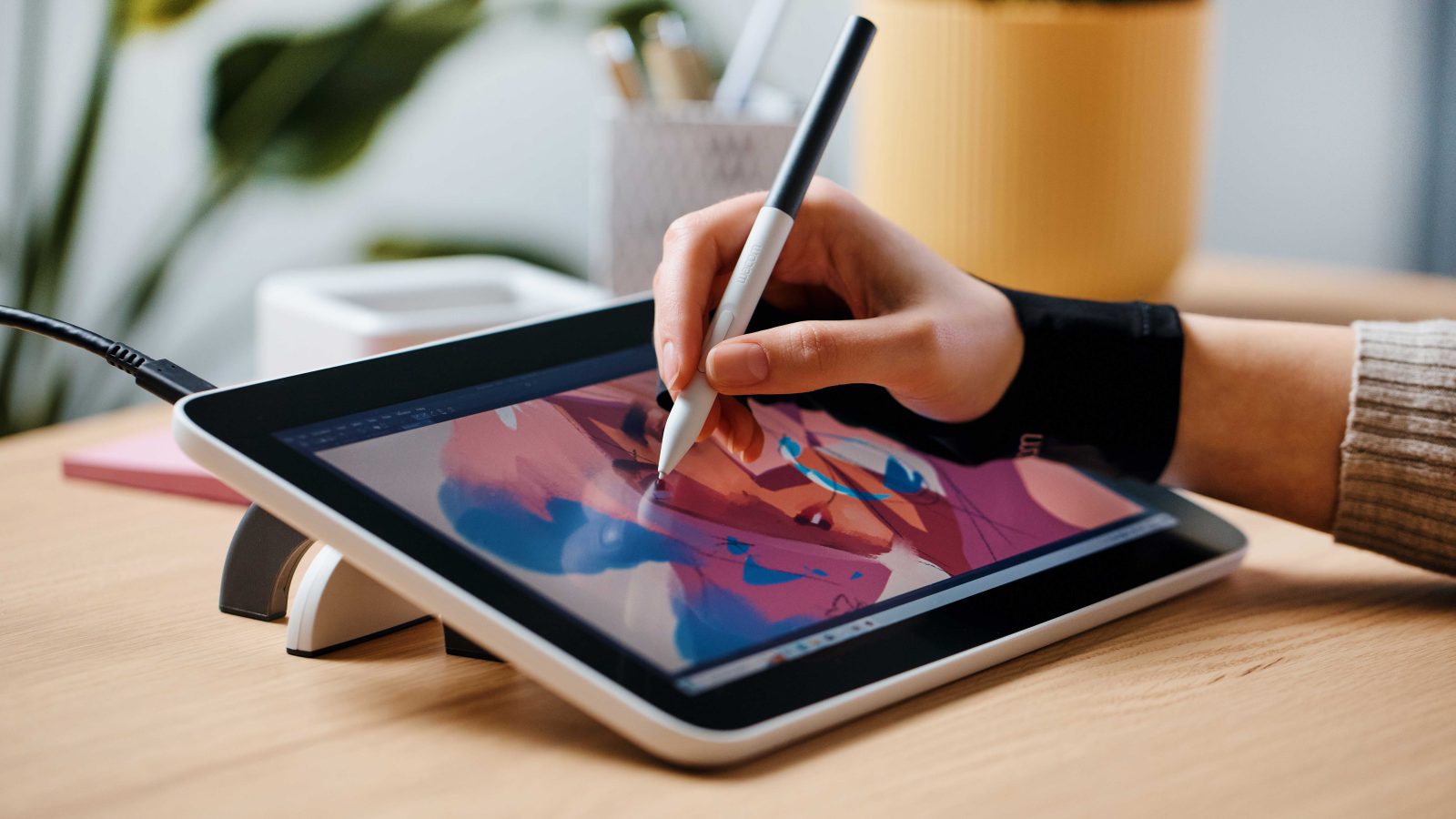
📷 Photo by inkl.com
Many users make the mistake of installing new drivers directly over old ones. This practice often leaves behind “ghost” registry keys or configuration files that conflict with the new installation. A clean slate is essential. Before installing a new driver, always use an uninstaller tool or the built-in Windows “Add or Remove Programs” feature to ensure the old environment is purged. Furthermore, avoid beta drivers unless you are specifically testing new features, as these are prone to stability issues that can interrupt your workflow during critical projects.
Managing Creative Application Settings
Sometimes the issue is not with the tablet itself, but with the software you are using. Programs like Adobe Photoshop or Krita have their own internal settings for tablet input. If your stylus works in your web browser but not in your painting software, navigate to the application’s preferences. Look for “Input” or “Tablet” settings and toggle between “WinTab” and “Windows Ink.” This simple switch often resolves the discrepancy between how the OS handles the stylus and how the application interprets the data.
Preventative Maintenance Tips
To keep your equipment running smoothly, treat your tablet as a piece of precision hardware. Keep the surface clean to prevent debris from damaging the nib, which can lead to sensor issues. Regularly check the manufacturer’s website for firmware updates, as these often contain patches for the latest OS security updates. If you frequently travel, ensure that the USB cable is not bent at sharp angles, as internal fraying can cause intermittent connection drops that are notoriously difficult to diagnose.
Frequently Asked Questions
Q: Why does my stylus work in some apps but not others?
A: This is usually a conflict between Windows Ink and WinTab settings within your creative software. Try toggling the tablet input mode in your application’s settings menu.
Q: Should I keep multiple tablet drivers installed?
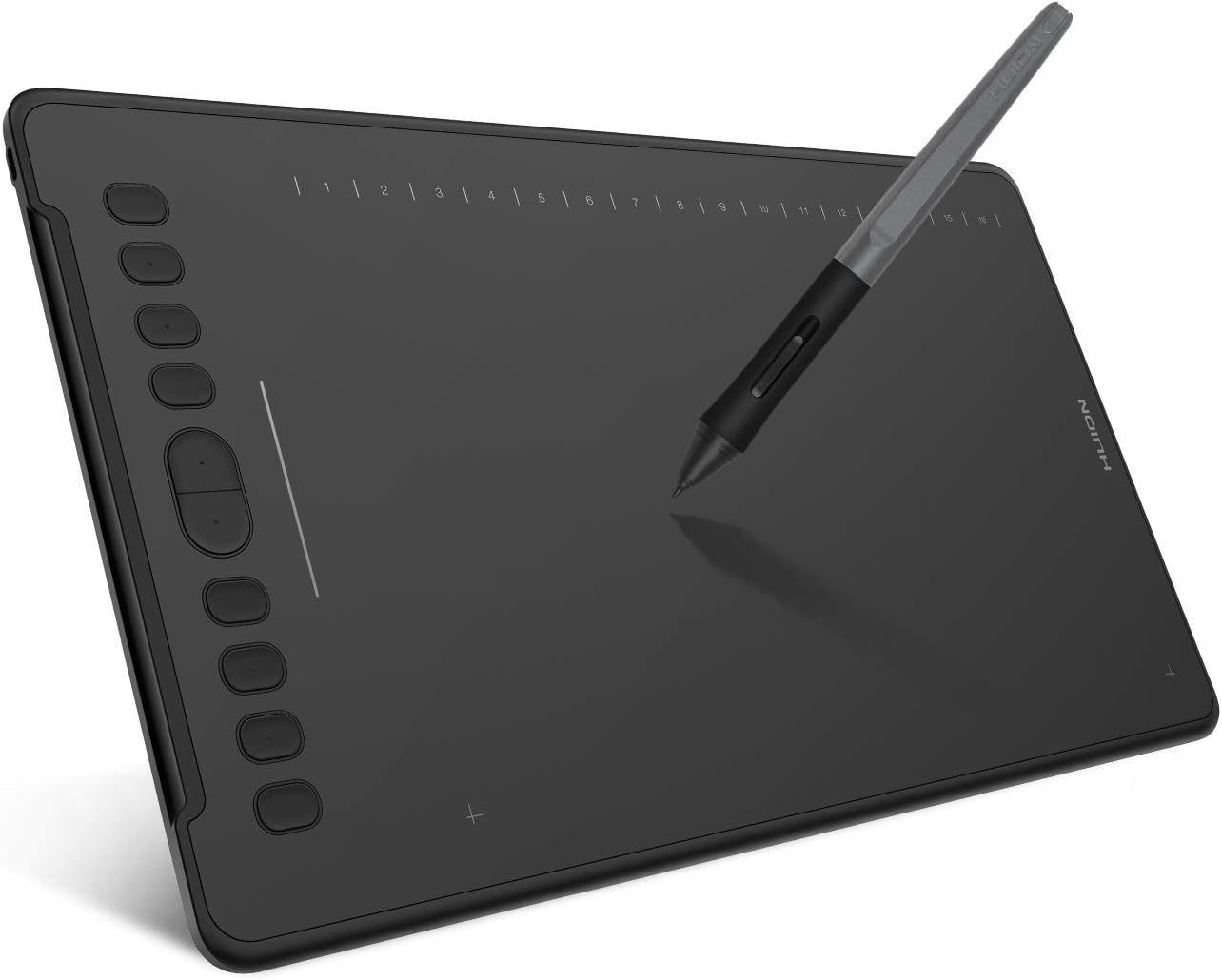
📷 Photo by amazon.ca
A: No. Having multiple tablet drivers installed—for example, both Wacom and XP-Pen drivers—will cause significant input conflicts and system instability. Always uninstall previous brands before installing new hardware.
Q: Does the USB port type matter for my drawing tablet?
A: Yes. Always connect your tablet directly to a USB port on the motherboard (the back of a desktop PC). Front panel ports or external hubs often provide insufficient power, leading to erratic stylus tracking.
📷 Photo by amazon.sa